
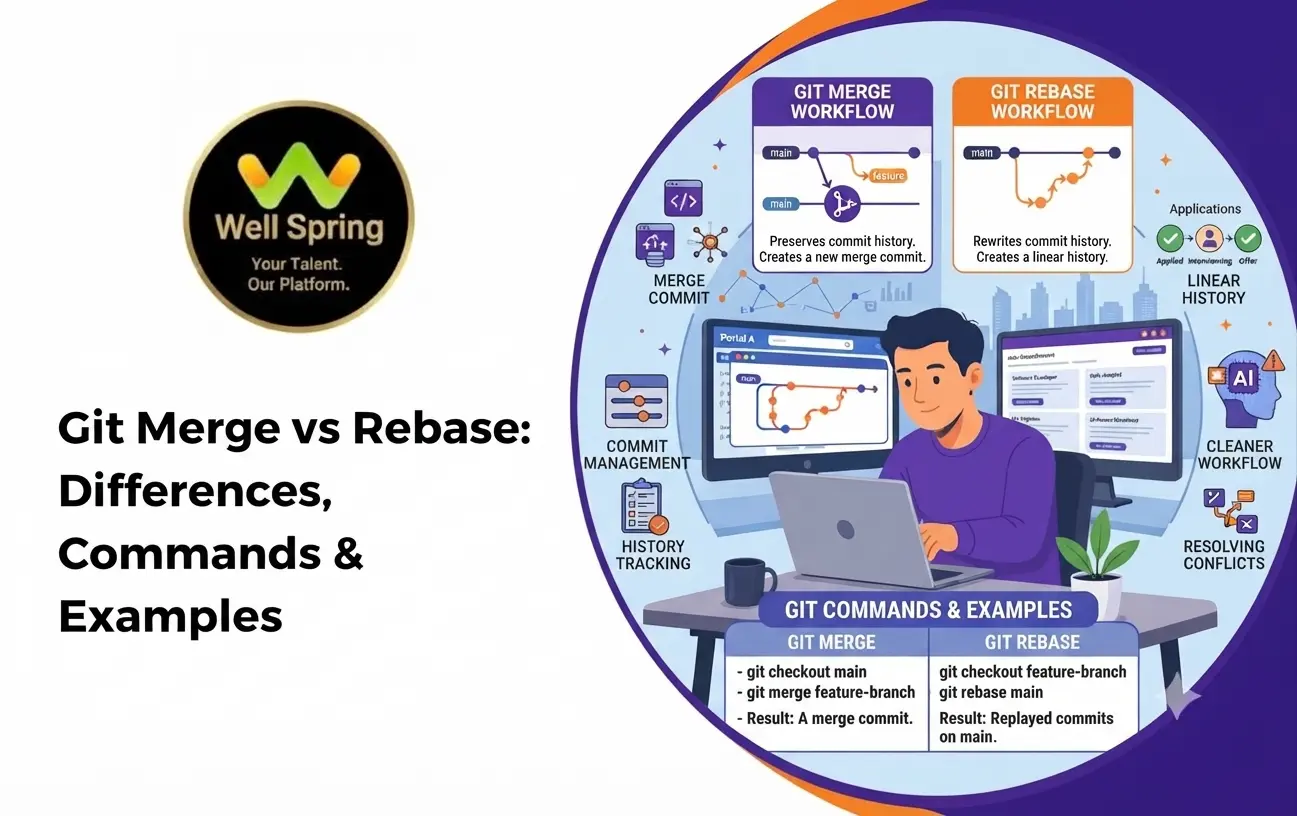

Git is one of the most widely used version control systems for managing source code and collaborating on software development projects. When multiple developers work on the same project, they often create separate branches to develop features, fix bugs, and make improvements without affecting the main codebase.
Once the development work is complete, these branches need to be integrated. Git provides two common methods for this process: Git Merge and Git Rebase.
Although both commands help integrate changes from different branches, they work differently and produce different commit histories. Understanding Git Merge vs Rebase helps developers choose the right approach based on their project requirements and team workflow.
In this guide, we will explore what Git Merge and Git Rebase are, their differences, commonly used commands, practical examples, merge conflicts, and when to use each method.
1. What Is Git Merge?
Git Merge is a command used to combine changes from one branch into another branch. It allows developers to integrate completed work without removing the existing commit history of either branch.
When developers work on separate branches, their changes remain independent. Once they are ready to combine their work, they can use the Git Merge command to bring those changes together.
Git Merge generally creates a merge commit when the branches have diverged. If Git can perform a fast-forward merge, it simply moves the target branch pointer forward without creating an additional merge commit.
Git Merge Command
The basic Git Merge command is:
git merge branch-nameFor example, if you want to merge the feature branch into the main branch, use:
git checkout main

git merge feature
These commands switch to the main branch and integrate the changes from the feature branch.
How to Use Git Merge
Follow these steps to merge changes between branches:
- Open your project directory in the terminal.
- Check the available branches using
git branch. - Switch to the branch where you want to integrate the changes.
- Run the Git Merge command with the source branch name.
- Resolve any merge conflicts if Git reports them.
- Complete the merge commit if required.
Example:
git branch

git checkout main

git merge feature
After merging, the changes from the feature branch will be available in the main branch.
Git Merge Example
Consider a project where a developer creates a feature branch to add a login page.
The main branch contains the existing application, while the feature branch contains the new login functionality.
The developer can integrate the completed feature using:
git checkout main

git merge feature-login
If both branches have different commits, Git may create a merge commit to connect their histories.
A simplified commit history might look like this:
A---B---C---------M  main
     \           /
      D---E-----     feature-login
Here:
- A, B, and C represent commits on the main branch.
- D and E represent commits on the feature branch.
- M represents the merge commit.
The merge commit connects both development histories while preserving their original commits.
2. What Is Git Rebase?
Git Rebase is a command used to move or replay commits from one branch onto another branch.
Instead of creating a merge commit, Git takes the commits from the current branch and reapplies them on top of the latest commit of the target branch.
This creates a more linear commit history, making it easier to understand the sequence of development changes.
Git Rebase Command
The basic Git Rebase command is:
git rebase branch-nameFor example, if you want to update your feature branch with the latest changes from the main branch:
git checkout feature

git rebase main
Git takes the feature branch commits and reapplies them on top of the latest main branch commit.
How to Use Git Rebase
Follow these steps to rebase a branch:
- Open the project directory in the terminal.
- Switch to the branch you want to update.
- Fetch the latest changes from the remote repository if needed.
- Run the Git Rebase command using the target branch.
- Resolve conflicts if Git pauses the rebase.
- Continue the rebase process after resolving conflicts.
Example:
git fetch origin

git checkout feature

git rebase origin/main
This updates the feature branch by replaying its commits on top of the latest remote main branch.
Git Rebase Example
Consider a situation where a developer is working on a feature branch while another developer adds new commits to the main branch.
Instead of merging the main branch into the feature branch, the developer can use Git Rebase to place the feature commits after the latest main branch commit.
Example:
git checkout feature

git rebase main
Before rebasing:
A---B---C  main
     \
      D---E  feature
After rebasing:
A---B---C---D'---E' featureHere:
- A, B, and C represent commits from the main branch.
- D and E represent the original feature commits.
- D' and E' represent the newly created commits after rebasing.
The original feature commits are replaced with new commits because rebasing creates new commit IDs.
3. Difference Between Git Merge and Git Rebase
Git Merge and Git Rebase both integrate changes between branches, but their approaches to managing commit history are different.
Git Merge preserves the original branch history and may create a merge commit. Git Rebase replays commits onto another branch and creates a linear commit history.
The following table explains the major differences between Git Merge vs Rebase.
| Comparison | Git Merge | Git Rebase |
|---|---|---|
| Purpose | Combines changes from different branches | Replays commits onto another branch |
| Commit History | Preserves branch history | Creates a linear history |
| Merge Commit | May create a merge commit | Does not create a merge commit |
| Commit IDs | Existing commits are preserved | Replayed commits receive new IDs |
| History | Can contain branching and merging | Usually appears linear |
| Conflict Resolution | Conflicts are resolved during merging | Conflicts may need to be resolved for individual commits |
| Collaboration | Suitable for shared branches | Best suited for private or unpublished branches |
| Complexity | Generally easier for beginners | Requires more care |
| Best Use | Preserving collaboration history | Keeping feature branches updated |
Key Difference Explained
1. Commit History
Git Merge preserves the original commits from both branches. Git Rebase replays commits and creates new commit IDs.
2. Merge Commit
A normal three-way merge may create an additional merge commit. A rebase does not create a merge commit for the integration.
3. Conflict Resolution
During a merge, Git may report conflicts that need to be resolved before completing the merge.
During a rebase, Git can stop at a conflicting commit. After resolving the conflict, developers must continue the rebase process.
4. Project Collaboration
Git Merge is useful when teams want to preserve the history of how different branches were integrated.
Git Rebase is useful when developers want to maintain a clean and linear history before sharing their feature branches.
4. Git Merge vs Rebase: Practical Command Comparison
Both commands are commonly used in daily development workflows. Understanding their syntax helps developers select the correct command.
Git Merge Commands
| Command | Purpose |
|---|---|
git branch |
Lists available branches |
git checkout main |
Switches to the main branch |
git merge feature |
Merges feature into the current branch |
git merge --no-ff feature |
Creates a merge commit even when fast-forward is possible |
git merge --abort |
Aborts an ongoing merge |
git log --oneline --graph --all |
Displays commit history graphically |
Git Rebase Commands
| Command | Purpose |
|---|---|
git rebase main |
Rebases the current branch onto main |
git rebase origin/main |
Rebases onto the latest fetched remote main |
git rebase --continue |
Continues after resolving conflicts |
git rebase --abort |
Cancels an ongoing rebase |
git rebase --skip |
Skips the current commit during rebase |
git rebase -i HEAD~3 |
Starts an interactive rebase of the last three commits |
These commands help developers manage branches, update code, and maintain a readable commit history.
5. How to Merge Branches in Git
Merging branches is a common activity when multiple developers work on the same project.
For example, one developer may work on a login feature while another developer works on a registration feature. Once the work is completed, both features need to be integrated into the main branch.
Follow these steps to understand how to merge branches in Git.
Step 1: Check Available Branches
git branchThis command displays the local branches available in the repository.
Step 2: Switch to the Target Branch
git checkout mainSwitch to the branch where you want to combine the changes.
Step 3: Merge the Feature Branch
git merge featureGit integrates the feature branch changes into the main branch.
Step 4: Check the Commit History
git log --oneline --graph --allThis command displays the repository's commit history and helps you verify the merge.
Step 5: Push the Changes
git push origin mainThis uploads the merged changes to the remote repository.
Important: Before merging, ensure that your working directory is clean and that you are merging the intended source branch into the correct target branch.
6. How to Rebase a Branch in Git
Rebasing is useful when a developer wants to update a feature branch with the latest changes from the main branch without introducing a merge commit.
Follow these steps to understand how to rebase a branch in Git.
Step 1: Fetch the Latest Remote Changes
git fetch originThis downloads the latest remote updates without automatically merging them into your current branch.
Step 2: Switch to the Feature Branch
git checkout featureMove to the feature branch that needs updating.
Step 3: Rebase the Feature Branch
git rebase origin/mainGit replays the feature branch commits on top of the latest remote main branch.
Step 4: Verify the Commit History
git log --oneline --graph --allCheck whether the feature branch now contains the updated commit history.
Step 5: Push the Rebased Branch
If the branch has already been pushed and its commit history has changed, you may need to update the remote branch using:
git push --force-with-lease origin featureUse this carefully. Rewriting the history of a shared branch can affect other developers. Coordinate with your team before force-pushing.
7. What Are Git Merge Conflicts?
Git Merge Conflicts occur when Git cannot automatically combine changes from different branches.
This usually happens when two developers modify the same lines of a file or make conflicting changes to the same section of code.
For example, one developer changes a function in the main branch while another developer modifies the same function in a feature branch.
When Git cannot determine which change should be retained, it reports a merge conflict and asks the developer to resolve it manually.
Common Reasons for Git Merge Conflicts
- Two developers modify the same lines of code.
- Different changes are made to the same file.
- One developer deletes a file while another modifies it.
- Multiple branches contain incompatible changes.
- Changes are made to the same section of a configuration file.
Understanding these situations helps developers identify and resolve conflicts before they affect the project.
8. How to Resolve Git Merge Conflicts
Resolving conflicts is an important part of working with multiple Git branches.
When a conflict occurs, Git pauses the merge process and marks the conflicting sections inside the affected files.
Follow these steps to resolve Git Merge Conflicts.
Step 1: Identify the Conflicting Files
Run the following command:
git statusGit displays the files that contain merge conflicts.
Step 2: Open the Conflicting File
Open the affected file using your code editor.
You may find conflict markers similar to these:
<<<<<<< HEAD
console.log("Welcome to the application");
=======
console.log("Welcome to the new application");
>>>>>>> feature
These markers indicate the conflicting changes.
<<<<<<< HEADidentifies the current branch's version.=======separates the two versions.>>>>>>> featureidentifies the incoming branch's version.
Step 3: Choose the Correct Changes
Review both versions and decide which code should remain.
For example, you may resolve the conflict as follows:
console.log("Welcome to the new application");Remove all conflict markers after deciding which changes to keep.
Step 4: Stage the Resolved File
git add filenameReplace filename with the name of the file you resolved.
Step 5: Complete the Merge
git commitIf Git created a merge commit that requires completion, this command finishes the merge.
You can also use the default merge commit message provided by Git.
Resolving Conflicts During Rebase
When conflicts occur during a rebase, the process is slightly different.
After editing the conflicting files, run:
git add filename

git rebase --continue
Repeat these steps if additional conflicts occur.
If you want to cancel the rebase and return to the previous state, use:
git rebase --abortAlways review the resolved code and run the relevant tests before pushing changes to a shared repository.
9. When to Use Git Merge vs Rebase
Choosing between Git Merge and Git Rebase depends on the development workflow, collaboration requirements, and the importance of preserving commit history.
Both approaches are useful, but they serve different purposes.
When to Use Git Merge
Git Merge is a suitable choice when:
- Multiple developers are collaborating on the same project.
- You want to preserve the original commit history.
- You need to record when different branches were integrated.
- You are working with shared branches.
- You want to avoid rewriting existing commit history.
For example, a team working on multiple features can merge completed feature branches into the main branch after reviewing and testing the changes.
When to Use Git Rebase
Git Rebase is a suitable choice when:
- You want to maintain a clean commit history.
- You need to update a feature branch with the latest main branch changes.
- You want to organize local commits before submitting a pull request.
- You are working on a private or unpublished feature branch.
- You want to avoid unnecessary merge commits.
For example, a developer working independently on a feature can rebase the branch onto the latest main branch before submitting it for review.
Which Is Better: Git Merge or Git Rebase?
Neither Git Merge nor Git Rebase is universally better.
Git Merge is generally preferred when preserving the complete collaboration history is important. Git Rebase is useful when maintaining a linear and readable commit history is the priority.
Many development teams use both commands as part of their workflow. They rebase private feature branches to incorporate the latest changes and merge approved work into the main branch.
10. Git Merge vs Rebase: Best Practices
Following good Git practices helps developers maintain a stable codebase and avoid unnecessary conflicts.
Consider these recommendations when working with Git Merge and Git Rebase:
- Understand the Branch Structure: Know which branch contains the latest stable code before merging or rebasing.
- Commit Your Changes: Save your work before starting a merge or rebase to avoid losing uncommitted changes.
- Update Your Branch Regularly: Fetch the latest changes from the remote repository to reduce integration problems.
- Avoid Rebasing Shared Branches: Rewriting published commit history can create problems for other developers.
- Resolve Conflicts Carefully: Review conflicting code instead of automatically accepting one version.
- Test After Integration: Run the necessary tests after completing a merge or rebase.
- Use Meaningful Commit Messages: Clear commit messages make it easier for developers to understand project changes.
- Coordinate With Your Team: Follow a consistent branching and integration strategy across the development team.
These practices make version control more predictable and improve collaboration in software development projects.
Conclusion
Understanding Git Merge vs Rebase is important for developers who work with multiple branches and collaborative software development projects.
Git Merge combines changes while preserving the original commit history, making it useful for team collaboration and tracking branch integration. Git Rebase replays commits onto another branch, creating a cleaner and more linear history.
The right approach depends on your project requirements and development workflow. By understanding both commands, practising with different branches, and following proper conflict-resolution methods, developers can manage code changes more effectively and maintain a well-organised Git repository.