
UI/UX Design Tutorials
Introduction
UI/UX design is the process of planning and creating digital experiences that are visually clear, easy to navigate, and useful to people. It is used when designing websites, mobile applications, dashboards, online stores, and other digital products.
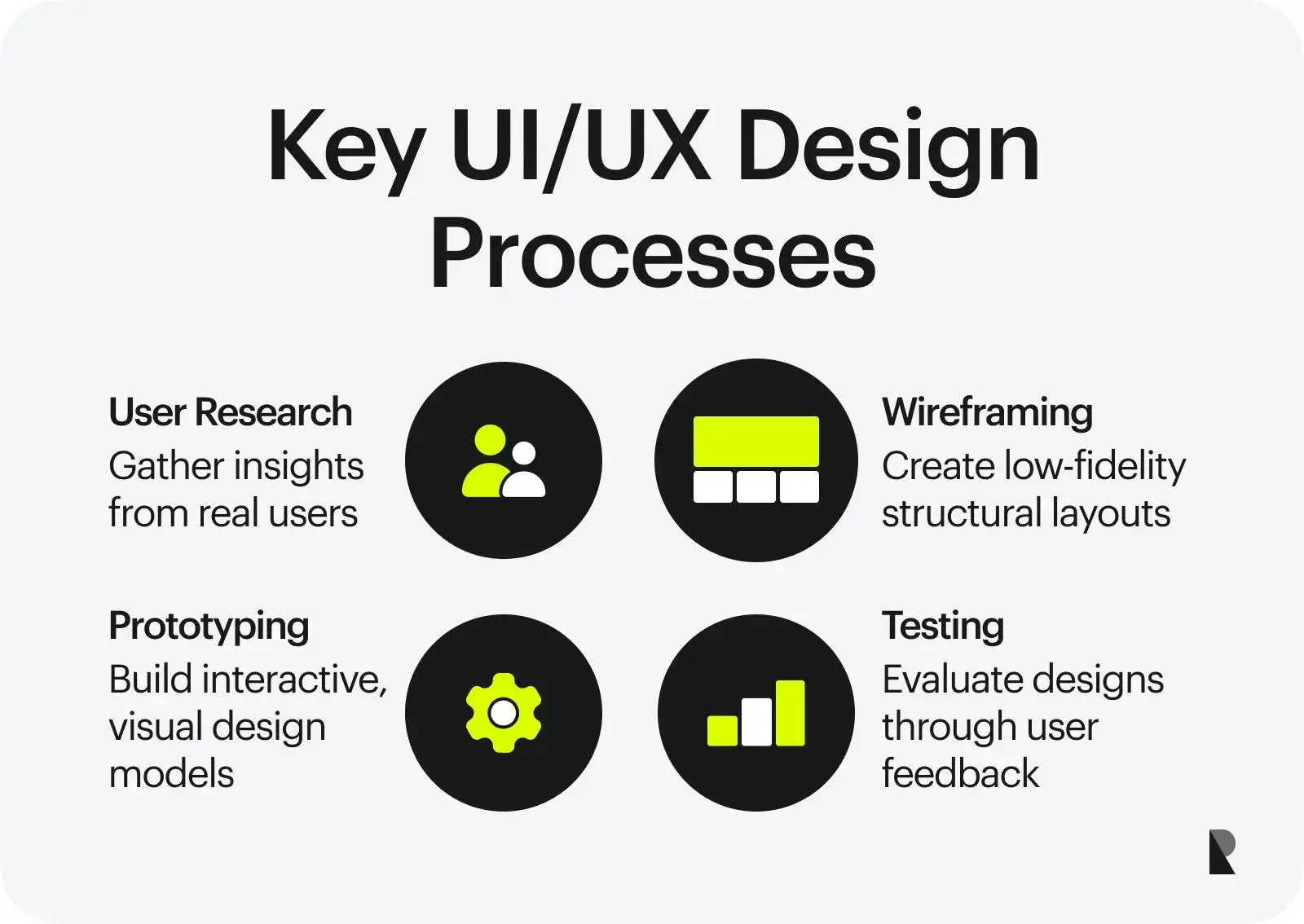
These UI/UX Design Tutorials for Beginners introduce the main concepts of user interface design and user experience design. You will learn about visual hierarchy, typography, colours, user research, wireframes, Figma, interactive prototypes, and usability testing.
Each topic is explained step by step so that students can understand the purpose behind design decisions and practise applying them to simple digital products. You can start with the fundamentals and gradually move towards creating screens and interactive prototypes.
Why Learn UI/UX Design?
- Understand how people interact with websites and apps.
- Learn to organise content and navigation clearly.
- Practise creating layouts, wireframes, and prototypes.
- Understand how design decisions affect usability.
- Explore tools used to plan and present interface designs.
- Build practical projects to demonstrate your design process.
If you want guided learning alongside these tutorials, explore the UI/UX Design Course in Trichy to learn about structured training and practical design exercises at Well Spring Talent Solutions.
What Is the Difference Between UI and UX Design?
UI and UX are closely related, but they focus on different aspects of a digital product. UI design concentrates on the interface people see and interact with. UX design considers the complete experience of using the product to accomplish a task.
What Is User Interface (UI) Design?
User interface design focuses on the visual and interactive elements of a website or application. These elements include buttons, menus, forms, icons, colours, typography, spacing, images, and page layouts.
For example, when designing a registration page, UI design determines the arrangement of input fields, the appearance of the submit button, the text styles, and the visual feedback shown to the user.
What Is User Experience (UX) Design?
User experience design focuses on how easily people can understand and use a product. It involves identifying user needs, organising information, planning navigation, reducing unnecessary steps, and evaluating whether users can complete their tasks successfully.
For example, UX design considers whether a registration form asks only for necessary information, explains errors clearly, and allows users to complete the process without confusion.
UI Design vs UX Design
UI Design:
- Focuses on visual presentation.
- Defines colours and typography.
- Organises buttons, forms, and layouts.
- Creates consistent interface elements.

UX Design:
- Focuses on user needs and goals.
- Plans navigation and task flows.
- Identifies usability problems.
- Evaluates the complete user journey.
UI and UX work together. A product may look attractive but still be difficult to use. Similarly, a useful product may feel confusing if its interface is poorly organised. Effective design considers both appearance and usability.
Important UI Design Principles
UI design principles help designers create interfaces that are consistent, readable, and easy to understand. Beginners can use these principles when designing website pages, application screens, forms, and dashboards.
1. Visual Hierarchy
Visual hierarchy guides attention towards the most important information first. Designers can create hierarchy through heading sizes, font weight, spacing, contrast, and element placement.
For example, a course page may show the course title prominently, followed by a short description and a clearly visible enquiry button.
2. Alignment and Spacing
Alignment keeps related elements organised, while spacing separates content into understandable groups. Consistent spacing makes pages easier to scan and prevents the interface from feeling crowded.
3. Colour and Contrast
Colours can communicate emphasis, status, and visual identity. Text and interface elements should have sufficient contrast against their backgrounds so that users can read content and identify important controls.
4. Typography
Typography affects readability and visual consistency. Choose suitable font sizes, line spacing, and font weights. Use headings to establish structure and avoid using too many different font styles on one page.
5. Consistency
Similar elements should behave and appear consistently. For example, buttons that perform the same type of action should follow a consistent visual style and provide predictable feedback.
6. Accessibility
Accessible design helps people with different abilities use a digital product. Consider readable text, adequate contrast, clear labels, keyboard navigation, meaningful error messages, and alternatives for important visual information.
7. Feedback and Affordance
Interface controls should communicate how they can be used. Buttons should look interactive, links should be identifiable, and actions should provide suitable feedback. For example, a form can display a clear confirmation after successful submission.
UI/UX Design Tutorials for Beginners
Beginners should learn the design process before concentrating on advanced tools. Understanding the problem, intended users, content structure, and task flow helps you make more useful design decisions.
Step 1: Understand the Problem
Start by identifying what the digital product needs to help users accomplish. For example, an appointment booking website may help visitors find an available time, choose a service, and confirm a booking.
Step 2: Identify the Users
Consider who will use the product, what information they need, and what difficulties they may encounter. User interviews, questionnaires, observation, and feedback can help designers understand these needs.
Step 3: Organise the Content
Group related information and decide how users will move between sections. A clear information structure helps people find relevant content without unnecessary navigation.
Step 4: Sketch the Interface
Create a rough sketch or wireframe before adding detailed colours and visual styling. Focus on the placement of headings, navigation, content, forms, and action buttons.
Step 5: Create and Test a Prototype
Turn your screens into a simple interactive prototype. Ask someone to complete a task using it and observe where they hesitate or become confused. Use the feedback to improve the design.
User Research and User Flows
User research helps designers understand users' goals, expectations, behaviours, and difficulties. Instead of relying only on assumptions, designers use research findings to make informed decisions about the product experience.
Common User Research Methods
- User interviews: Ask people about their needs, goals, and experiences.
- Questionnaires: Collect feedback from a group of users.
- Observation: Observe how people perform tasks with an existing product.
- Usability testing: Ask users to complete tasks and identify areas of difficulty.
- Feedback analysis: Review recurring comments and problems to identify improvements.
What Is a User Flow?
A user flow is a sequence of steps a person follows to complete a task in a website or application. It helps designers plan the screens, decisions, and actions involved in that journey.
Example: Course Enquiry User Flow
Start
  |
  v
Visit the Course Page
  |
  v
Review Course Information
  |
  v
Click the Enquiry Button
  |
  v
Complete the Enquiry Form
  |
  v
Submit the Form
  |
  v
View Confirmation Message
  |
  v
End
When reviewing this flow, consider whether users can easily find the course information, understand the enquiry form, correct validation errors, and recognise when their submission is successful.
How User Flows Improve Design
- Show the steps required to complete a task.
- Reveal unnecessary actions and confusing navigation.
- Help designers identify missing screens or decisions.
- Support discussions between designers and developers.
- Provide a foundation for wireframes and prototypes.
Figma Tutorials for Beginners
Figma Tutorials for Beginners introduce a design tool used to create interface layouts, reusable components, wireframes, and interactive prototypes. Figma also supports collaboration, allowing people to review and share design work.
What Can You Create with Figma?
- Website layouts and landing page designs.
- Mobile application screens.
- Low-fidelity and high-fidelity wireframes.
- Reusable buttons, cards, and interface components.
- Interactive prototypes connecting multiple screens.
- Design systems containing reusable styles and components.
Step 1: Understand Frames
Frames provide a structured area for designing screens and organising interface elements. You can create frames for desktop pages, tablet layouts, mobile screens, or specific sections of a design.
Step 2: Add Basic Elements
Practise using shapes, text, images, and basic interface elements. Arrange them to create a simple login page or homepage. Focus on spacing, alignment, readability, and clear visual hierarchy.
Step 3: Learn Auto Layout
Auto layout helps organise elements using consistent spacing, padding, and alignment. It is useful when designing buttons, cards, navigation bars, and content sections that may change size as content changes.
Step 4: Create Components
Components allow you to reuse interface elements. For example, you can create a standard button and reuse it throughout your design. Reusable components help maintain consistency and make updates easier.
Step 5: Connect Screens in Prototype Mode
Use prototype interactions to connect screens and demonstrate navigation. A button can lead to another screen, a menu can reveal options, or a form flow can demonstrate the steps needed to complete a task.
Beginner Practice: Design a Login Screen
- Create a frame for a mobile screen.
- Add a title and a short supporting description.
- Add email and password fields.
- Create a clearly visible login button.
- Arrange the elements with consistent spacing.
- Check text readability and colour contrast.
- Create a second screen to demonstrate the next step.
This exercise helps beginners practise layout, typography, spacing, component reuse, and basic prototyping in one small project.
Continue with these Figma Tutorials for Beginners for a dedicated learning path covering design tool fundamentals and practical interface exercises.
Wireframing Tutorials
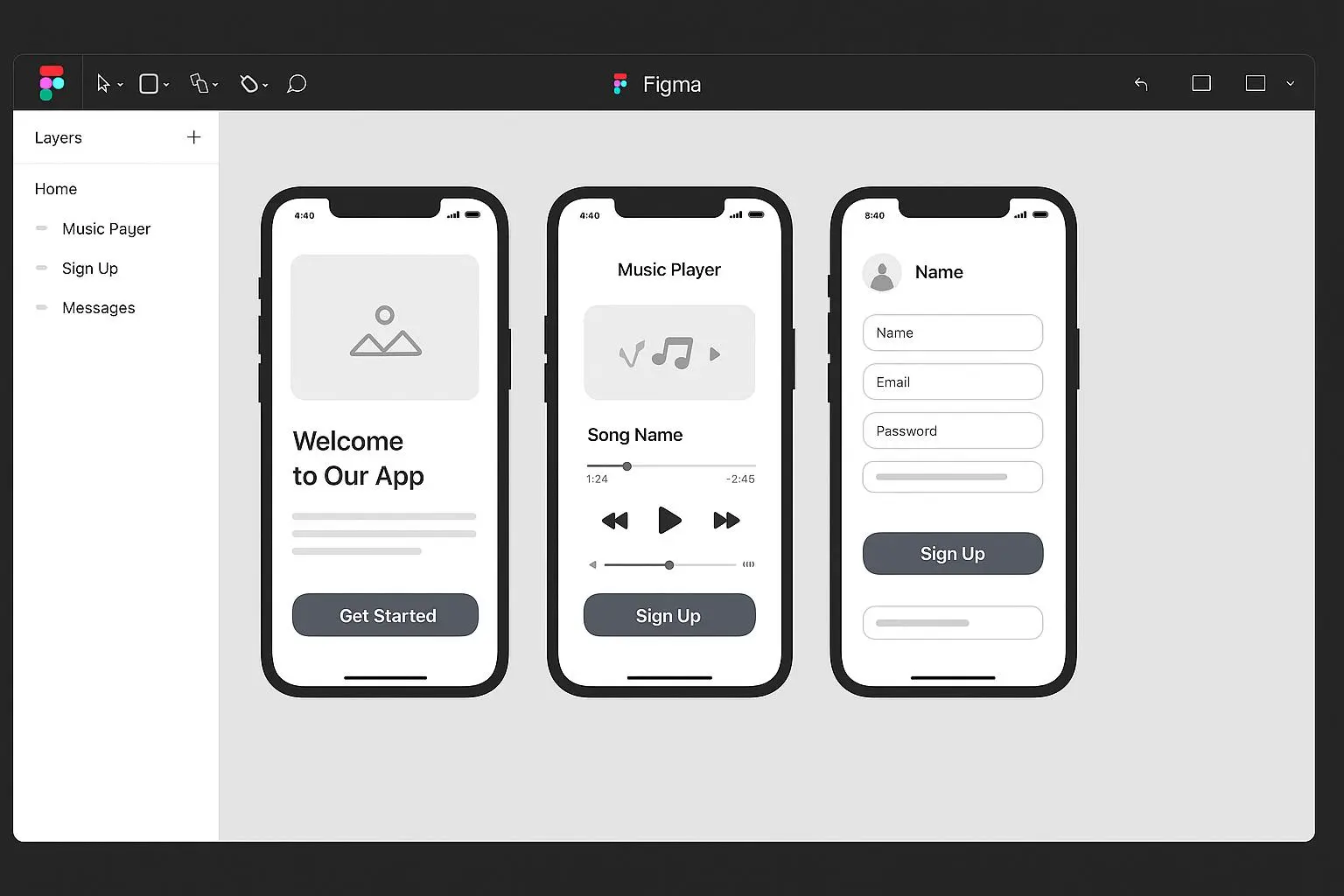
Wireframing Tutorials explain how to plan the structure of a website or mobile application before working on detailed visual design. A wireframe shows where important content and interface elements will appear on a screen.
What Is a Wireframe?
A wireframe is a simplified representation of a page or screen. It commonly uses boxes, lines, labels, and placeholders to show the layout, content order, navigation, and placement of important controls.
Low-Fidelity vs High-Fidelity Wireframes
- Low-fidelity wireframes: Simple sketches or basic layouts used to explore structure and ideas quickly.
- High-fidelity wireframes: More detailed layouts with clearer spacing, content, and interface specifications. They may include some visual styling.
How to Create a Wireframe
- Define the page goal and intended audience.
- Identify the information users need first.
- List the main sections and interface elements.
- Arrange the sections in a logical order.
- Show navigation and important user actions.
- Review the layout for clarity and usability.
- Update the wireframe after receiving feedback.
Example: Website Homepage Wireframe
---------------------------------
| Logo             Navigation    |
---------------------------------
|                               |
| Main Heading                  |
| Supporting Description        |
| Primary Action Button         |
|                               |
---------------------------------
| Feature 1 | Feature 2 | Feature 3 |
---------------------------------
| About or Service Information  |
---------------------------------
| Testimonials or Helpful Content |
---------------------------------
| Footer Links and Contact      |
---------------------------------
This text-based example illustrates the order of common homepage sections. The final layout should be based on the page's goals, content requirements, audience, and responsive design needs.
Common Wireframing Mistakes
- Adding visual details before understanding the layout.
- Ignoring the main task the user needs to complete.
- Making navigation unnecessarily complicated.
- Forgetting how the layout will adapt to mobile screens.
- Including too much content without a clear hierarchy.
- Skipping feedback and design revisions.
After planning the structure, you can develop the wireframe into a more detailed interface using Figma and connect the screens through a prototype. Explore the dedicated Wireframing Tutorials for more practice.
UI Prototyping Tutorials
UI Prototyping Tutorials explain how to create a working representation of a proposed interface. A prototype allows people to explore screens and interactions before the product is fully developed.
What Is a UI Prototype?
A UI prototype demonstrates how interface elements and screens may behave. Depending on its purpose, it can be a simple clickable model or a more detailed representation of the intended experience.
Wireframe vs Prototype
Wireframe:
- Shows page or screen structure.
- Focuses on content and layout.
- May contain little visual styling.
- Often used to explore early ideas.

Prototype:
- Demonstrates screen interactions.
- Shows navigation between screens.
- Can simulate a user journey.
- Helps review a proposed experience.
How to Create an Interactive Prototype
- Prepare the screens you want to demonstrate.
- Identify the actions users should be able to perform.
- Connect buttons and interactive elements to relevant screens.
- Set the appropriate starting screen.
- Preview the prototype and test each interaction.
- Ask someone to complete a task using the prototype.
- Revise confusing interactions and repeat the test.
Example: Appointment Booking Prototype
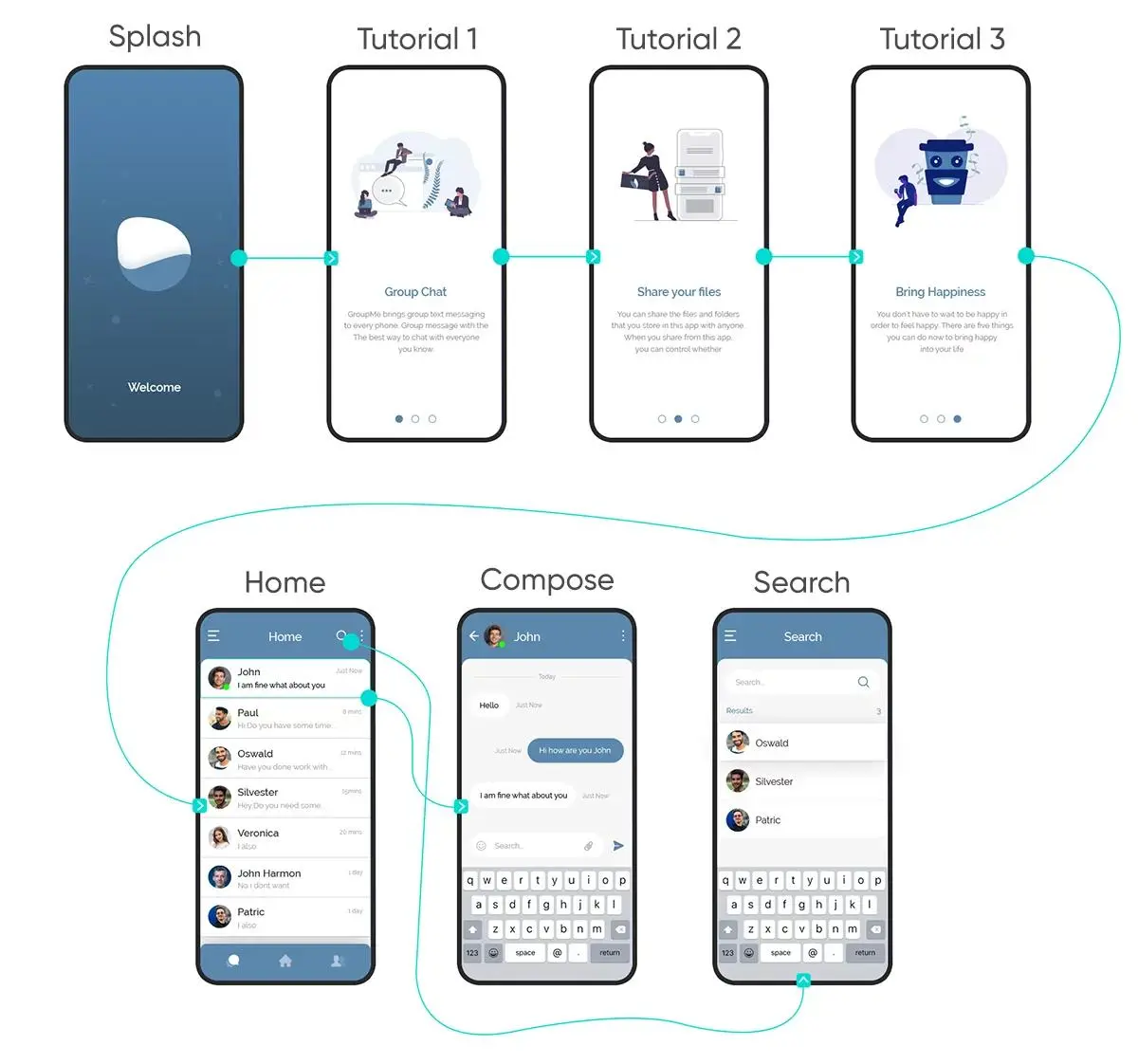
Imagine a mobile application that lets users book an appointment. A simple prototype might connect a service selection screen, date and time selection, user details form, and confirmation screen.
Service Selection
       |
       v
Choose Date and Time
       |
       v
Enter Details
       |
       v
Review Booking
       |
       v
Confirmation Screen
During testing, check whether users understand each step, can move backwards when necessary, recognise required fields, and understand when their booking has been confirmed.
Benefits of Prototyping
- Helps communicate design ideas before development.
- Reveals confusing navigation and missing interactions.
- Supports early feedback from users and stakeholders.
- Helps teams discuss possible improvements.
- Reduces the risk of implementing unclear design decisions.
To practise screen connections and interactive flows, continue with the UI Prototyping Tutorials.
User Experience Design Examples
User Experience Design Examples show how design principles can solve practical problems. Looking at familiar digital products helps beginners understand why navigation, feedback, content structure, and task flow matter.
Example 1: Online Shopping Application
A shopping application should help customers discover products, compare relevant information, select items, and complete an order. Clear categories, useful filters, readable product details, and a visible cart can make the journey easier to understand.
A UX designer can review whether users can find a product, understand delivery information, update cart quantities, and correct errors during checkout.
Example 2: Appointment Booking Website
A booking website should make it clear which services are available and how to reserve a time. Showing available dates, explaining required information, and providing a clear confirmation can help reduce uncertainty during booking.
Example 3: Registration Form
A well-designed registration form asks for necessary information, labels fields clearly, and explains validation errors in a helpful way. Grouping related fields and showing understandable feedback can make form completion easier.
Example 4: Mobile Navigation
Mobile screens have limited space, so navigation should help people find key sections without creating unnecessary complexity. Familiar labels, clear interactive states, and a predictable navigation structure can improve usability.
Example 5: Online Course Website
A course website should help students understand what a course covers, what they need to know before starting, and how to enquire or enrol. Clear course descriptions, well-organised topics, and visible next steps support informed decisions.
How to Analyse a UX Design Example
- Identify the main user and their goal.
- Describe the task the user needs to complete.
- Review the steps and navigation involved.
- Identify any confusing or unnecessary steps.
- Suggest a specific design improvement.
- Create a wireframe or prototype showing the improvement.
- Ask users for feedback and refine the solution.
When analysing a real application, avoid assuming that every design decision is effective. Explain the problem you observe, support your suggestion with user needs, and test whether the proposed change improves the experience.
Explore more User Experience Design Examples to practise analysing interfaces and identifying opportunities for improvement.
Usability Testing Basics
Usability testing evaluates how easily people can use a product to complete specific tasks. It helps designers identify problems that may not be obvious when reviewing a design on their own.
How to Conduct a Basic Usability Test
- Choose a clear task, such as submitting an enquiry.
- Prepare a prototype or an application to evaluate.
- Ask a participant to complete the task.
- Observe where the participant hesitates or makes mistakes.
- Ask for feedback after the task is completed.
- Record recurring problems and possible improvements.
- Update the design and test the changes again.
What Should You Observe?
- Whether users understand the available options.
- Whether they can identify the next action.
- Where they hesitate or select an incorrect control.
- Whether labels and messages are understandable.
- Whether they can recover from mistakes.
- Whether they complete the task successfully.
Usability testing is not about proving that a design is correct. It is a way to learn how people interact with it and discover what should be improved. Even a small, well-planned test can reveal useful design questions.
Popular UI/UX Design Tools
UI/UX designers use different tools to research users, organise ideas, create interface designs, build prototypes, and collect feedback. Tool selection depends on the project, team workflow, and design requirements.
Common Tool Categories
- Interface design and prototyping: Tools such as Figma help designers create screens, components, and interactive prototypes.
- Whiteboarding and diagramming: Digital whiteboards help teams map user journeys, organise ideas, and discuss workflows.
- Research and feedback: Interview notes, questionnaires, and feedback platforms help teams understand user needs.
- Collaboration and documentation: Shared design files and documentation help teams discuss requirements and communicate design decisions.
- Accessibility checking: Contrast checkers and accessibility tools help designers identify potential barriers.
How to Choose a UI/UX Design Tool
- Identify the design task you need to complete.
- Check whether the tool supports your workflow.
- Start with a small exercise or sample project.
- Practise the features relevant to your current task.
- Share your work and collect feedback where appropriate.
Beginners do not need to master every design tool immediately. Focus on the fundamentals first, then learn the features needed to complete practical design exercises.
Practical UI/UX Design Exercises for Beginners
Practical exercises help you apply design principles rather than only memorising definitions. Start with a small interface and explain the reason behind your design choices.
Exercise 1: Improve a Login Screen
- Review the layout of a sample login screen.
- Check the labels and spacing of the input fields.
- Make the primary action easy to identify.
- Plan how errors and successful login should be communicated.
- Create a revised wireframe or Figma screen.
Exercise 2: Create a Website Homepage Wireframe
- Choose a website purpose, such as a course website.
- List the information visitors need first.
- Organise the header, main heading, content, and action buttons.
- Arrange the sections in a logical order.
- Review the layout on desktop and mobile screen sizes.
Exercise 3: Build a Mobile App Prototype
- Create a home screen and two supporting screens.
- Identify the main task users should complete.
- Connect the screens using prototype interactions.
- Preview the flow from the starting screen.
- Check whether each action leads to the expected screen.
Exercise 4: Review an Existing User Experience
- Select a website or application you are authorised to review.
- Choose a specific task, such as finding contact details.
- Record the steps needed to complete the task.
- Identify unclear labels or unnecessary steps.
- Suggest an improvement and explain why it may help.
Exercise 5: Test a Design with Feedback
Share a prototype with a participant and ask them to complete a realistic task. Observe how they use the design, note any difficulties, and revise the interface based on the feedback.
UI/UX Design Projects for Beginners
Beginner projects help you combine research, layout planning, interface design, and prototyping into a complete design process. Choose a clear problem and document the decisions you make along the way.
1. Course Website Homepage Design
Design a homepage that explains a training provider's courses, learning approach, and contact options. Create a wireframe, develop the visual interface, and make the main navigation and enquiry journey clear.
2. Mobile Appointment Booking App
Create screens for selecting a service, choosing a date and time, entering details, and confirming an appointment. Connect the screens and review whether the booking flow is easy to follow.
3. E-Commerce Product Page
Design a product page with images, product details, price information, selection options, and a clear add-to-cart action. Consider how users compare information and understand the next step.
4. Student Dashboard
Create a dashboard that organises course progress, learning materials, upcoming tasks, and announcements. Use visual hierarchy and consistent components to make important information easy to find.
5. UX Improvement Case Study
Identify a usability problem in a sample or authorised interface. Explain the user problem, outline your proposed improvement, create before-and-after wireframes, and demonstrate the revised experience through a prototype.
What Should a UI/UX Project Include?
- The problem statement and intended users.
- Research findings or clearly stated assumptions.
- User flow or information structure.
- Wireframes and final interface screens.
- An interactive prototype where appropriate.
- Feedback and revisions, if user testing was conducted.
- A short explanation of your design decisions.
Keep your project documentation honest. Explain what you actually researched and tested, distinguish assumptions from findings, and show how your design decisions relate to the problem you identified.
Students seeking more guided practical work can explore the UI/UX Design Internship in Trichy page to learn about the relevant internship pathway at Well Spring Talent Solutions.
UI/UX Design Learning Roadmap
Follow this roadmap to build UI/UX design knowledge step by step. Practise each stage and create small examples before moving on to more complex projects.
- Step 1: Learn the difference between UI and UX design.
- Step 2: Understand typography, colour, spacing, alignment, contrast, and visual hierarchy.
- Step 3: Learn the basics of user research and user-centred design.
- Step 4: Practise organising content and mapping user flows.
- Step 5: Create low-fidelity wireframes for websites and apps.
- Step 6: Learn Figma fundamentals, frames, components, and auto layout.
- Step 7: Create detailed interface screens and reusable components.
- Step 8: Connect screens and build interactive prototypes.
- Step 9: Practise usability testing and refine designs using feedback.
- Step 10: Complete projects and document your design process.
You can begin without coding skills or advanced drawing experience. Focus on understanding user needs, explaining your decisions, practising design tools, and improving your work through feedback.
For structured guidance and practical exercises, visit the UI/UX Design Course in Trichy page.
Frequently Asked Questions About UI/UX Design Tutorials
1. What are UI/UX Design Tutorials?
UI/UX Design Tutorials explain how to plan, design, and improve digital interfaces and user experiences. They cover interface design principles, user research, wireframing, Figma, prototyping, usability, and practical design examples.
2. Are UI/UX Design Tutorials for Beginners suitable for students?
Yes. Beginners can start with UI and UX fundamentals, visual hierarchy, spacing, typography, user flows, and wireframes before progressing to Figma and interactive prototypes. Regular practice helps students apply these concepts.
3. What is the difference between UI design and UX design?
UI design focuses on visual and interactive elements such as layouts, buttons, typography, colours, and icons. UX design focuses on the overall experience, including user needs, task completion, navigation, usability, and the design process.
4. What is Figma used for in UI/UX design?
Figma is a design tool used to create interface layouts, wireframes, reusable components, and interactive prototypes. It also supports collaboration and sharing design work with other team members.
5. What is the difference between a wireframe and a prototype?
A wireframe shows the structure and placement of content and interface elements. A prototype demonstrates how screens and interactions may work, allowing users or stakeholders to review a proposed experience before development.
6. Do I need coding skills to learn UI/UX design?
Coding is not required to begin learning UI/UX design. Beginners can start with design principles, user flows, wireframes, and tools such as Figma. Basic knowledge of web and mobile development can help when collaborating with developers.
7. How can I practise UI/UX design as a beginner?
Start with a simple problem, identify the intended users, map the steps they need to complete, create wireframes, build a prototype, and collect feedback. You can practise with sample projects such as a registration form, shopping app, or appointment booking interface.
Start Learning UI/UX Design
Explore UI/UX Design Tutorials for Beginners, practise Figma, create wireframes, and build interactive prototypes. Apply the concepts through practical exercises and learn to improve digital experiences by understanding user needs.