Graphic Design Tutorials for Beginners
Introduction
Graphic design is the process of using text, colours, images, shapes, and layouts to communicate a message. It helps people understand information through visual content. You can see graphic design in advertisements, posters, websites, product packaging, logos, and social media posts.
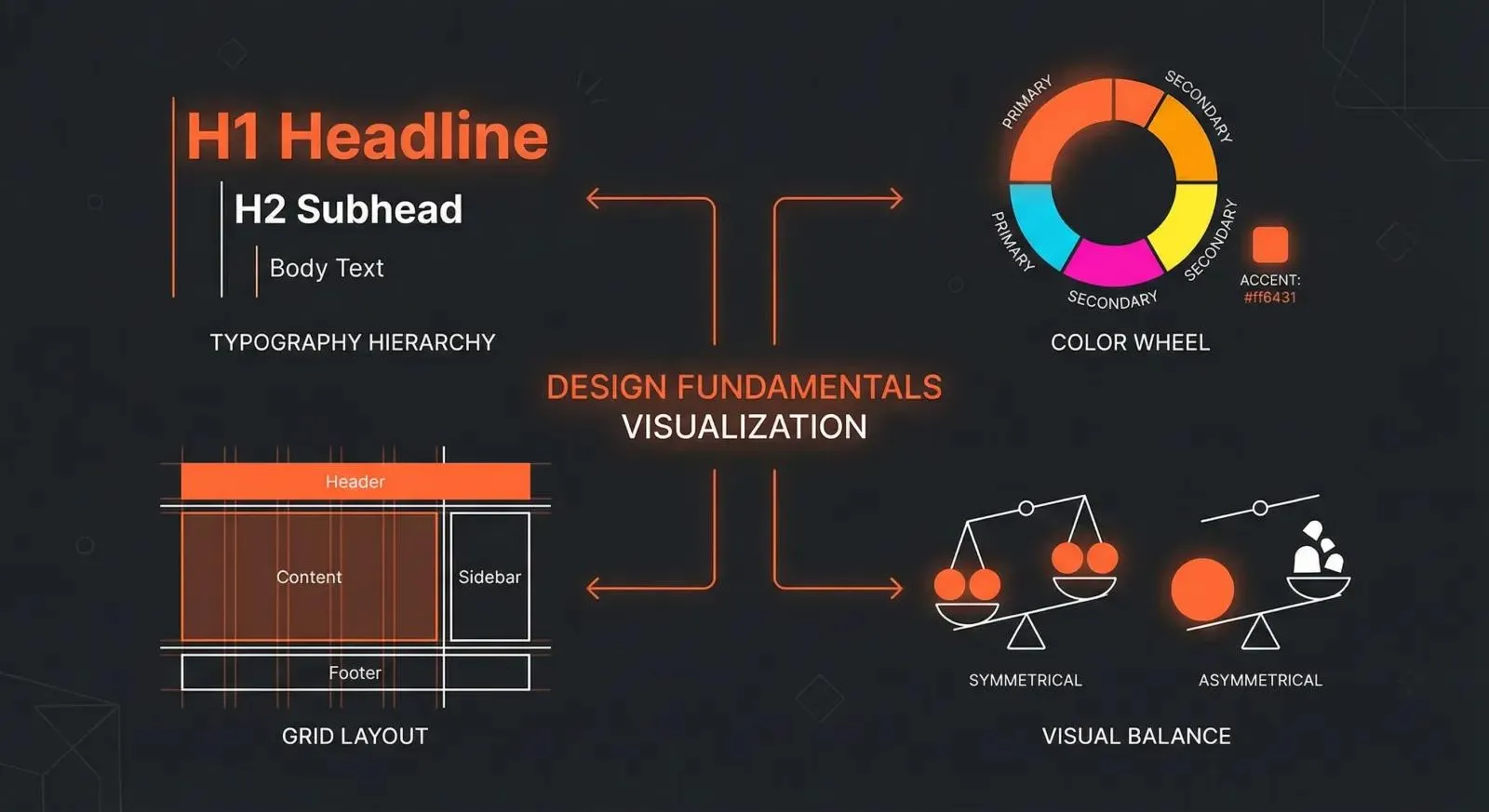
These Graphic Design Tutorials for Beginners introduce design concepts in simple language. You will learn about design principles, Adobe Photoshop, Adobe Illustrator, logo design, typography, colour theory, and practical projects.
You do not need previous design experience to start. Learn the basics, explore one tool at a time, and practise what you learn through small creative projects. Regular practice helps you understand how different design elements work together.
Why Learn Graphic Design?
- Learn to communicate ideas through visual content.
- Understand colours, typography, shapes, and layouts.
- Practise editing images and creating graphics.
- Learn how to develop simple logos and advertisements.
- Explore tools used in digital and print design.
- Build projects that demonstrate your developing skills.
Graphic Design Basics for Beginners
Before using advanced design software, it is useful to understand the basic elements of graphic design. These concepts help you organise content, guide the viewer's attention, and make information easier to read.
1. Lines and Shapes
Lines can separate sections, guide attention, and create visual direction. Shapes such as circles, rectangles, and triangles can organise content, form icons, and create illustrations.
2. Colour
Colours can create contrast, communicate a mood, and help establish a consistent visual identity. Choosing a suitable colour combination makes a design more organised and easier to recognise.
3. Typography
Typography is the arrangement and presentation of text. The right font, size, weight, and spacing can make information clear and help important headings stand out.
4. Images and Graphics
Images help explain ideas and attract attention. Choose images that match the purpose of the design, and make sure they are clear, relevant, and suitable for the intended audience.
5. Space and Composition
Space is the area between and around design elements. Good spacing prevents a design from feeling crowded. Composition refers to how these elements are arranged within the design.
Important Graphic Design Principles
Design principles help you arrange visual elements in a way that is clear, balanced, and easy to understand. Apply these principles when creating posters, logos, social media graphics, and advertisements.
1. Balance
Balance describes how visual weight is distributed across a design. An arrangement can be symmetrical or asymmetrical, depending on the purpose and style of the design.
2. Contrast
Contrast makes elements look different from one another. You can create contrast through colour, size, shape, font weight, or spacing. For example, a large heading can stand out from smaller supporting text.
3. Alignment
Alignment creates order by positioning elements in relation to one another. Consistent alignment helps text, images, and shapes look organised rather than randomly placed.
4. Visual Hierarchy
Visual hierarchy helps viewers understand what to look at first, second, and third. Use heading size, contrast, placement, and spacing to show which information is most important.
5. Repetition and Consistency
Repeating colours, font styles, shapes, or spacing patterns helps create a consistent design. This is especially useful when designing several pages or graphics for the same brand.
6. Proximity
Proximity means placing related elements close to one another. For example, a product name and its description should be visually connected so that viewers understand their relationship.
Adobe Photoshop Tutorials
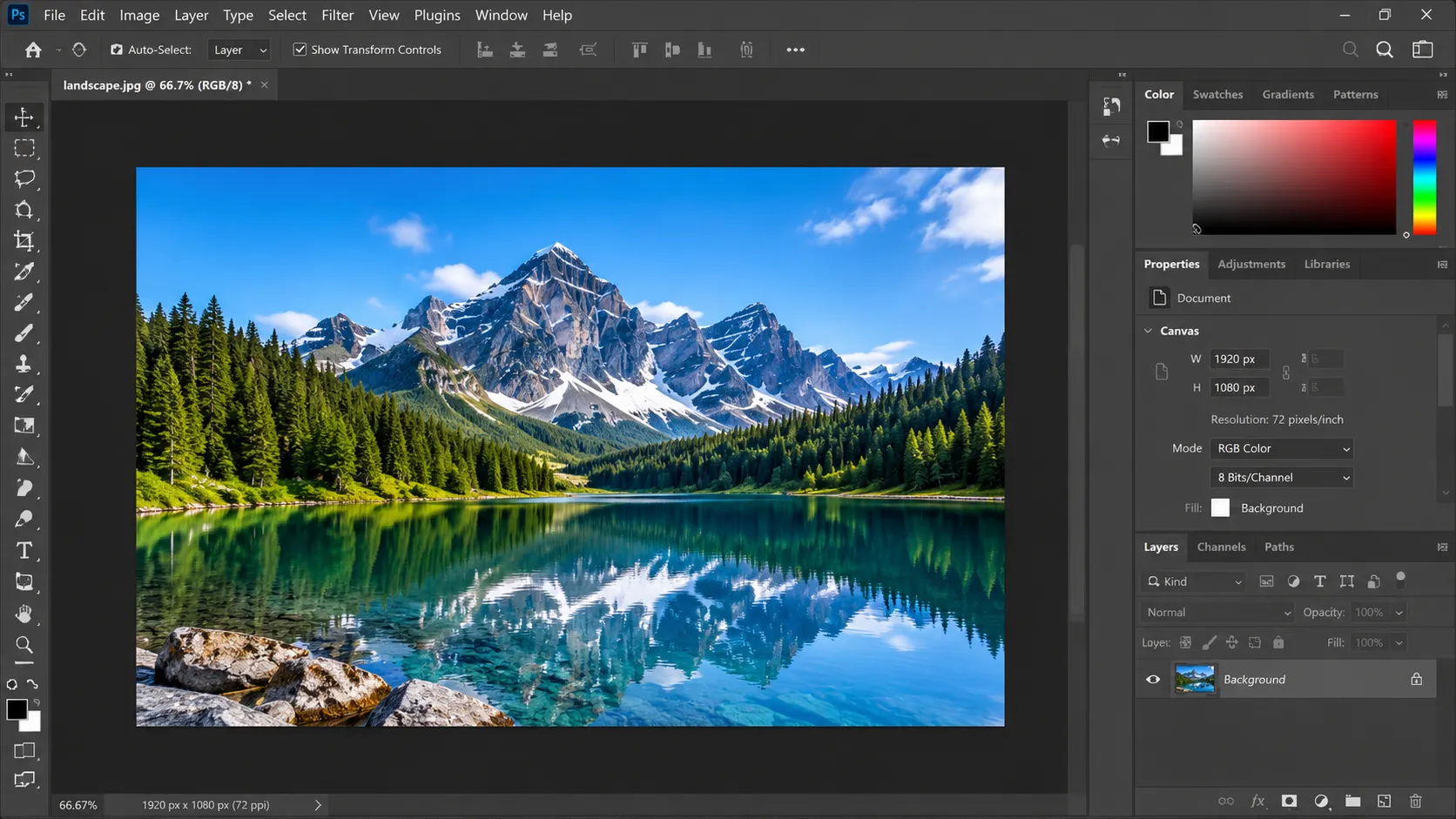
Adobe Photoshop is widely used for photo editing, image manipulation, digital artwork, and creative graphics. It helps designers improve photographs, combine images, adjust colours, remove backgrounds, and create visual content.
What Will You Learn in Photoshop Tutorials?
- Understand the Photoshop workspace and essential tools.
- Learn how layers organise different design elements.
- Crop, resize, and adjust images.
- Make selections and remove image backgrounds.
- Add text, shapes, and simple visual effects.
- Adjust brightness, contrast, and colour.
- Create posters and social media graphics.
- Save and export images in suitable file formats.
Understanding Layers
Layers let you work with separate parts of a design. For example, a poster may have one layer for the background, another for a photograph, and separate layers for the heading and supporting text. This makes it easier to edit individual elements without rebuilding the entire design.
Beginner Photoshop Project
Create a promotional poster for a college event. Add an event title, date, location, and a suitable image. Use layers to keep the text, image, and background organised.
Adobe Illustrator Tutorials
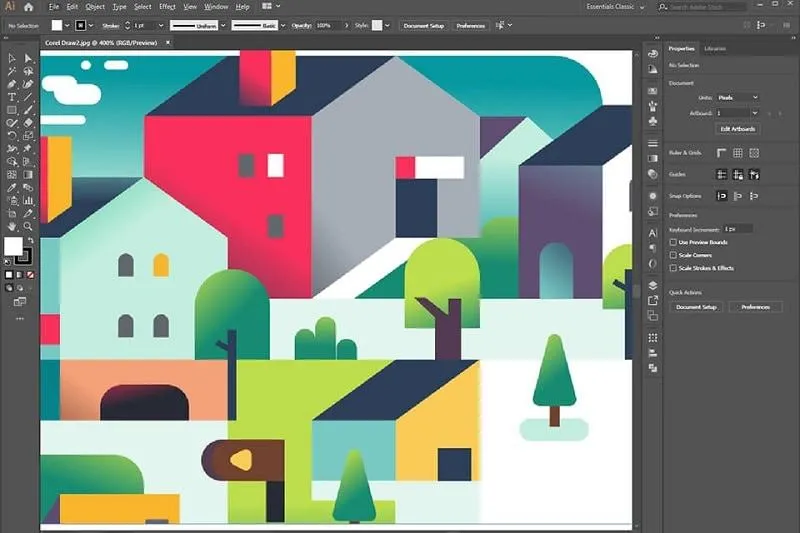
Adobe Illustrator is a vector graphics tool used to create logos, icons, illustrations, and other scalable graphics. Vector artwork can be resized without losing its sharpness, making it useful for branding and many digital and print design projects.
What Will You Learn in Illustrator Tutorials?
- Explore the Illustrator workspace.
- Understand the difference between vector and raster graphics.
- Create shapes using basic drawing tools.
- Use the Pen Tool to draw simple paths.
- Apply fills, strokes, and colours.
- Create basic icons and illustrations.
- Arrange text and shapes in a design.
- Export artwork for web and print use.
Understanding Vector Graphics
Vector graphics are built using paths and mathematical descriptions rather than a fixed grid of pixels. This makes vector artwork especially useful for logos and icons that need to appear at different sizes.
Beginner Illustrator Project
Create a simple icon using circles, rectangles, and other basic shapes. Experiment with colours and outlines, then export the finished icon as an image.
Logo Design Tutorials
A logo is a visual mark that helps people recognise a business, product, organisation, or brand. A useful logo should be clear, memorable, and appropriate for the brand and its audience.
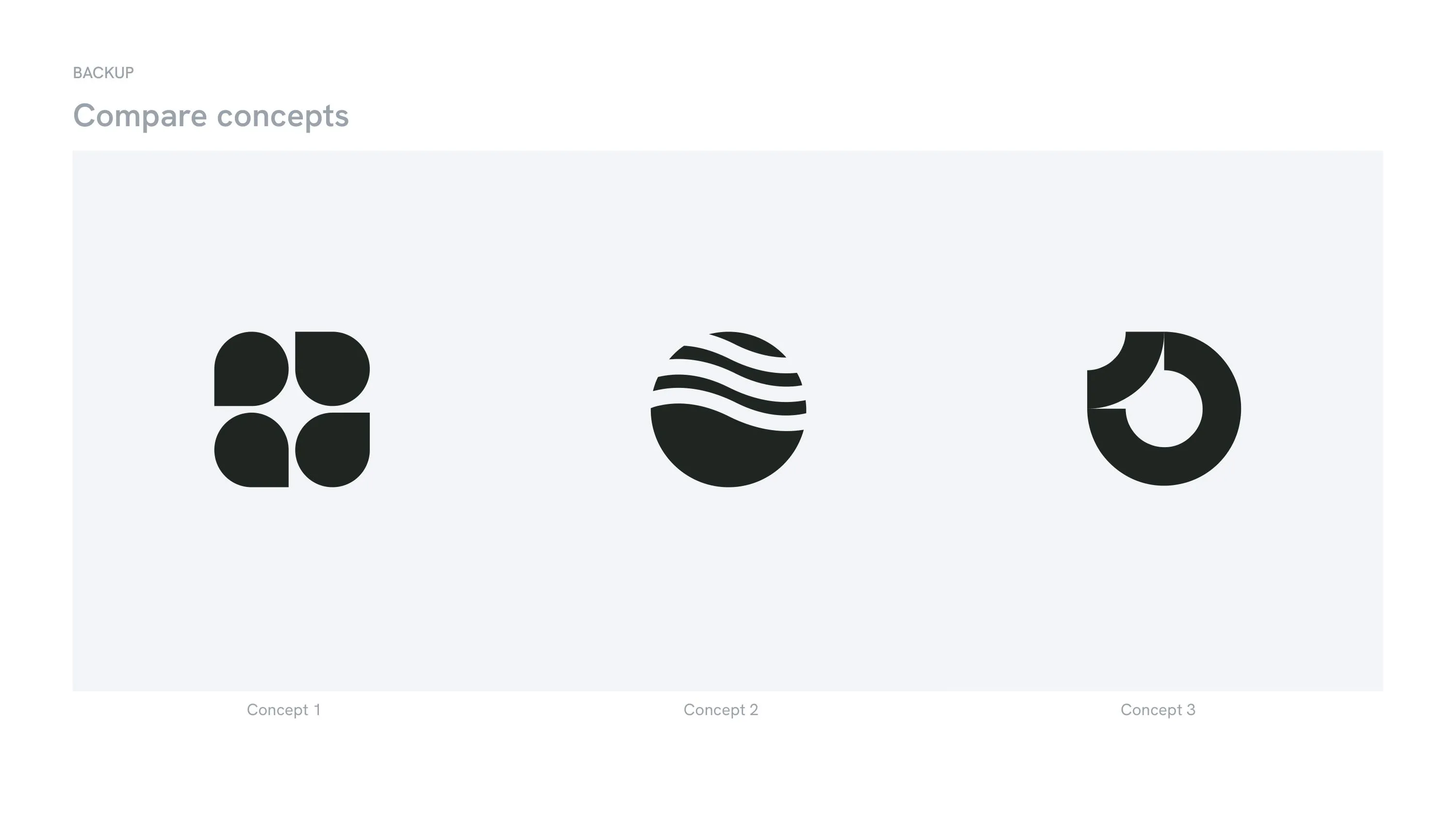
What Will You Learn in Logo Design Tutorials?
- Understand the purpose of a logo.
- Research a brand and its intended audience.
- Sketch ideas before using design software.
- Choose suitable colours and fonts.
- Create logos using shapes and vector tools.
- Understand wordmarks, symbols, and combination marks.
- Check logo readability at different sizes.
- Export logo artwork in appropriate file formats.
Types of Logos
Different brands use different logo styles. A wordmark uses the brand name as the main visual element, while a symbol-based logo uses an icon or graphic mark. A combination mark brings text and a symbol together.
How to Design a Logo Step by Step
- Understand the brand and its purpose.
- Identify the intended audience.
- Research relevant visual references.
- Sketch several different concepts.
- Select a suitable concept and refine the shapes.
- Choose appropriate typography and colours.
- Check how the logo looks at different sizes.
- Export the finished design in suitable formats.
Beginner Logo Design Project
Imagine you are creating a logo for a small café. Choose a brand name, sketch three concepts, and develop one idea digitally. Keep the design simple and make sure the name remains readable.
Typography Design Tutorials
Typography is the way text is selected, arranged, and presented in a design. It plays an important role in posters, advertisements, websites, logos, and social media graphics.
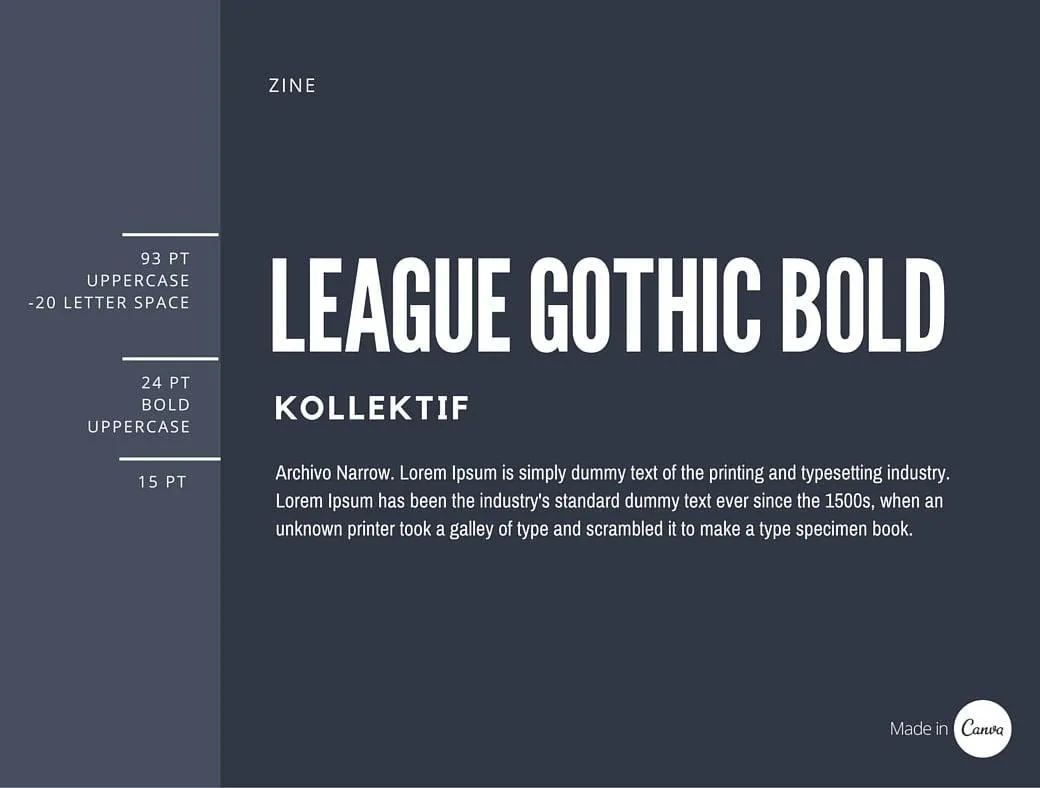
What Will You Learn in Typography Tutorials?
- Understand font families and font styles.
- Choose readable fonts for different purposes.
- Adjust font size, weight, and line spacing.
- Understand alignment and letter spacing.
- Combine fonts without making a design confusing.
- Create a clear difference between headings and body text.
- Improve readability in posters and advertisements.
Font Size and Hierarchy
A large heading usually attracts attention before smaller supporting text. Use different font sizes and weights to create a clear order of information. The most important message should be easy to identify.
Font Pairing
Font pairing means using two or more typefaces together in a design. A beginner can start with one font for headings and another for body text. Choose fonts that complement each other and remain easy to read.
Beginner Typography Project
Design an event poster using a large heading, a short description, and event details. Try two complementary font families and leave enough space between the different text sections.
Colour Theory for Graphic Design
Colour theory helps designers understand how colours relate to one another and how to combine them effectively. Suitable colour choices can create contrast, support readability, and give a design a consistent visual identity.
Primary and Secondary Colours
In traditional painting, red, yellow, and blue are commonly taught as primary colours. Mixing these pigments produces secondary colours such as orange, green, and purple. Digital colour systems use different models, such as RGB for screens.
Complementary Colours
Complementary colours sit opposite each other on a traditional colour wheel. They can create strong contrast when used together, but should be balanced carefully to keep text and other content readable.
Warm and Cool Colours
Reds, oranges, and yellows are often described as warm colours, while blues, greens, and some purples are often described as cool colours. These categories can help guide a design's overall visual mood.
How to Choose a Colour Palette
- Identify the purpose and audience of the design.
- Choose a main colour that supports the intended style.
- Select supporting colours that work well with it.
- Use contrast to distinguish headings and important elements.
- Check text readability against the background.
- Apply colours consistently across related designs.
Layout Design Basics
Layout design is the process of arranging text, images, shapes, and other elements within a space. A good layout helps viewers understand the content and find important information quickly.
Use a Clear Reading Order
Arrange the content so that viewers can understand the main message before moving to supporting details. Headings, subheadings, images, and spacing can help establish this order.
Keep Related Content Together
Place related text and images close to each other. For example, a product photograph should be visually connected to its name and description. This helps people understand which information belongs together.
Use Consistent Alignment
Align headings, body text, images, and other elements according to a consistent layout. A grid can help you organise content and maintain predictable spacing.
Leave Enough Empty Space
Empty space, also called white space, gives elements room to breathe. It can improve readability, separate sections, and help important content stand out.
Graphic Design Projects for Beginners
Practical projects help you apply design principles instead of only learning definitions. Begin with simple tasks and gradually try projects that combine several different skills.
| Project | Skills You Can Practise |
|---|---|
| Social media post | Colour selection, typography, and layout |
| Promotional poster | Visual hierarchy, image placement, and spacing |
| Business logo | Brand identity, shapes, and vector design |
| Event invitation | Font pairing, alignment, and content organisation |
| Product advertisement | Image editing, composition, and contrast |
| Icon set | Shape design, consistency, and simplicity |
| Brochure | Information hierarchy, layout, and typography |
How to Complete a Design Project
- Understand the purpose of the design.
- Identify the audience and the message.
- Collect suitable references and ideas.
- Sketch the layout before adding details.
- Select colours, fonts, and visual elements.
- Create the design using an appropriate tool.
- Review alignment, contrast, and readability.
- Export the design in the required format.
Practical Graphic Design Exercises
Small exercises are a useful way to improve your skills. Repeat each exercise with different content and visual styles so that you learn how to apply the same principles to different design problems.
Exercise 1: Create a Social Media Post
- Choose a topic such as an event or product.
- Write one clear heading and a short description.
- Select an image and a simple colour palette.
- Arrange the text and image using a clear hierarchy.
- Review the design at a small screen size.
Exercise 2: Design a Simple Logo
- Choose an imaginary brand.
- Write down three words that describe the brand.
- Sketch a few logo ideas using basic shapes.
- Choose suitable typography and colours.
- Check whether the logo remains clear at small sizes.
Exercise 3: Improve a Poster
- Find a poster that is difficult to read.
- Identify problems with spacing, contrast, or hierarchy.
- Rearrange the content in a clearer order.
- Choose readable fonts and suitable colours.
- Compare the original and revised layouts.
Exercise 4: Create a Typography Poster
- Choose a short quote or event title.
- Select a main font and a supporting font.
- Experiment with size, weight, and spacing.
- Make the most important words stand out.
- Check that the text remains readable.
How to Build a Graphic Design Portfolio
A graphic design portfolio is a collection of work that demonstrates your skills, creative thinking, and design process. Students can begin building a portfolio while learning by saving completed exercises and improving selected projects.
What Should You Include?
- Social media graphics and promotional posters.
- Logo concepts and brand identity exercises.
- Typography and layout projects.
- Image editing or illustration work.
- Brochures or other multi-page designs.
- A short explanation of the purpose of each project.
Show Your Design Process
Do not show only the final image. When relevant, include your initial idea, rough sketches, layout choices, and the improvements you made. Explain why you selected particular colours, fonts, and design elements.
Choose Quality Over Quantity
Select projects that demonstrate different skills and present them clearly. Check for spelling errors, inconsistent spacing, poor image quality, and incomplete details before including a project.
Graphic Design Learning Roadmap
Follow this learning roadmap to build your graphic design skills step by step. Practise each stage before moving on to more complex projects.
- Step 1: Learn design fundamentals, including shapes, colours, spacing, contrast, and alignment.
- Step 2: Understand typography, font pairing, and visual hierarchy.
- Step 3: Practise simple image editing and layout design.
- Step 4: Learn essential Photoshop tools and create basic promotional graphics.
- Step 5: Learn Illustrator basics and practise creating vector shapes, icons, and logos.
- Step 6: Complete logo design and typography exercises.
- Step 7: Create several projects for different purposes.
- Step 8: Review your work, improve weaker designs, and organise your portfolio.
You do not need to master every design tool at once. Focus on understanding the fundamentals and applying them to practical projects. Consistent practice will help you become more confident in your work.
Frequently Asked Questions About Graphic Design Tutorials
1. What are graphic design tutorials for beginners?
Graphic design tutorials for beginners explain design principles, colours, typography, software tools, and practical techniques for creating posters, logos, social media graphics, and other visual content.
2. Can I learn graphic design without prior experience?
Yes. Beginners can start with design fundamentals and gradually learn tools such as Adobe Photoshop and Adobe Illustrator. Practising simple projects helps develop graphic design skills.
3. What is the difference between Photoshop and Illustrator?
Photoshop is commonly used for photo editing and pixel-based image work. Illustrator is commonly used for vector graphics such as logos, icons, and illustrations that can be resized without losing sharpness.
4. How do I start learning logo design?
Start by understanding the brand and its audience. Sketch ideas, select suitable colours and fonts, create a simple design using vector tools, and check that the logo remains clear at different sizes.
5. Why is typography important in graphic design?
Typography helps people read and understand information. Appropriate font choices, sizes, spacing, and alignment make a design clearer and help important messages stand out.
6. Which projects should beginners include in a graphic design portfolio?
Beginners can include social media posts, promotional posters, logos, event invitations, product advertisements, and icon designs. Choose projects that demonstrate different design skills and explain the purpose of each.
7. How can I improve my graphic design skills?
Practise regularly, study existing designs, learn design principles, experiment with tools, and review your work carefully. Completing different projects and improving them over time can help you develop your skills.
Start Learning Graphic Design
Explore graphic design fundamentals, practise Photoshop and Illustrator, and create your own logos, posters, and typography designs. Work through the tutorials one topic at a time and build a portfolio as your skills improve.