
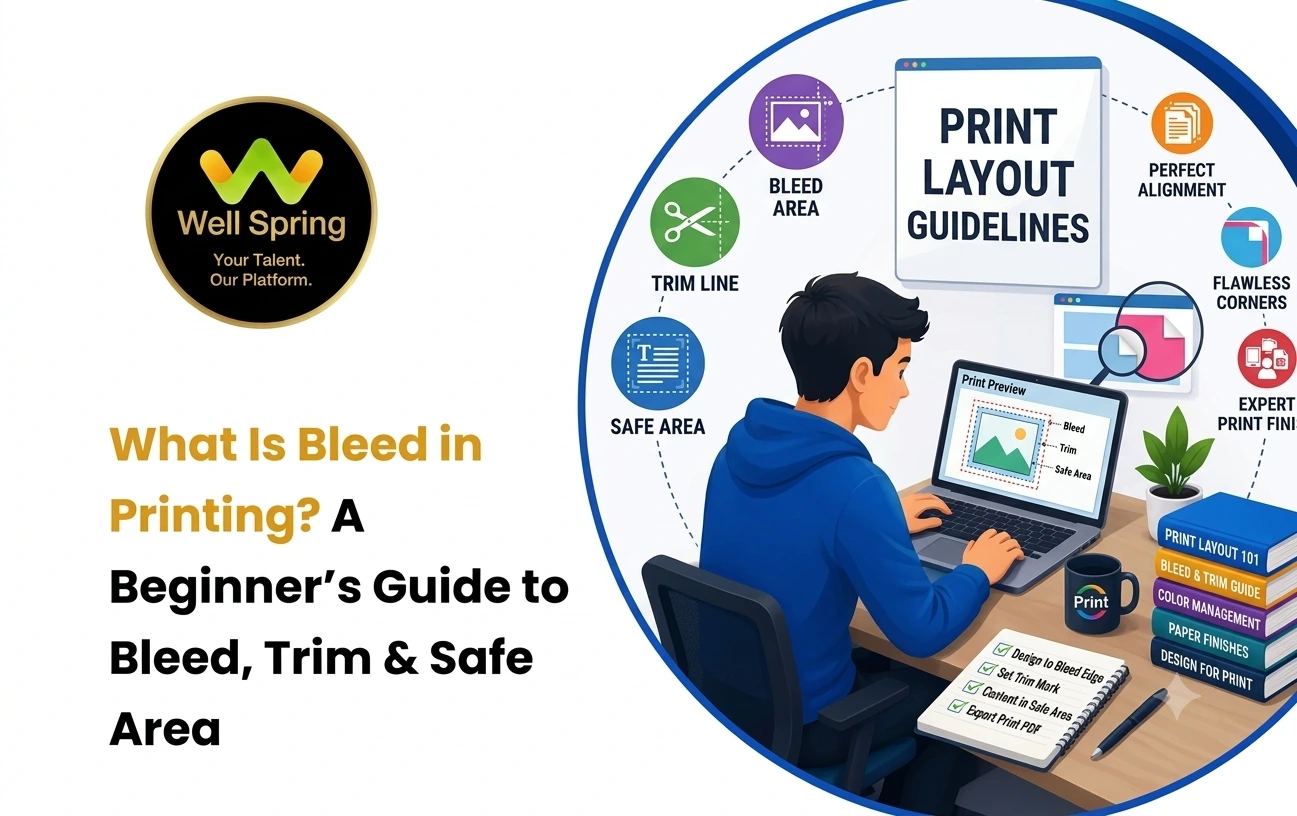

Quick Answer: What Is Bleed Printing?
Introduction
A design can look perfectly aligned on a computer screen and still have unwanted white edges after it is printed and trimmed. This usually happens because the artwork was prepared exactly to the final page size without allowing any extra image or background beyond the cutting line.
This is where bleed in graphic design becomes important.
Bleed is a small extra area added outside the final trim size of a printed document. It gives the printer enough artwork to work with when the sheet is cut, helping backgrounds, images, colours, and other edge-to-edge elements continue beyond the finished edge.
Understanding bleed, trim, safe area, and crop marks is an essential skill for anyone preparing artwork for professional printing.
Quick Answer: What Is Bleed Printing?
Bleed printing refers to preparing artwork with extra design area extending beyond the final trim size. This extra area is removed during cutting, allowing backgrounds, photographs, colours, or graphics to reach the edge of the finished print without leaving an unintended white border caused by small cutting variations.
What Is Bleed in Printing?
Bleed is the area of artwork that extends beyond the final edge of a printed piece.
Imagine that you are designing a business card that will be trimmed to its final size.
If the background colour stops exactly at the edge of the document, even a tiny variation during cutting could expose a thin white line.
With bleed, the background continues beyond the intended cutting boundary.
A simplified representation looks like this:
+--------------------------------------+
|              BLEED                   |
|   +------------------------------+   |
|   |                              |   |
|   |        SAFE AREA             |   |
|   |                              |   |
|   |      FINAL TRIM SIZE         |   |
|   |                              |   |
|   +------------------------------+   |
|              BLEED                   |
+--------------------------------------+
The outer area is eventually removed.
The final printed product corresponds to the trim boundary.
Why Is Bleed Needed?
Printing and cutting are physical processes.
Even with professional equipment, cutting can involve small positional variations. If artwork stops exactly at the intended edge, those variations can reveal the paper underneath.
Bleed provides a margin of artwork beyond the cutting line.
For example, suppose a flyer has a dark background that should reach every edge.
Without bleed:
Artwork edge
      |
      v

+-------------+
|             |
|   FLYER     |
|             |
+-------------+
With bleed:
Extra artwork
      |
      v

+-----------------+
|  +-----------+  |
|  |           |  |
|  |   FLYER   |  |
|  |           |  |
|  +-----------+  |
+-----------------+
       ^
       |

    Trim edge
The printer trims through the extended artwork.
The result is a clean edge-to-edge finish.
What Is the Printing Bleed Area?
The printing bleed area is the additional space beyond the final trim boundary where artwork continues.
It is not intended to appear as part of the final dimensions.
For example, if a print specification requires a finished document of a particular size, the working file may need to be slightly larger because the bleed extends beyond the final cut.
The exact bleed requirement depends on:
- The printer.
- The printing process.
- The type of product.
- The finishing method.
- The document size.
- The printer's production specifications.
Therefore, designers should check the printer's specifications before preparing the final file.
What Is Trim Size?
Trim size is the final physical size of the printed product after it has been cut.
For example, a designer may create a brochure at a larger working size because it includes bleed, but the final brochure will be cut down to its specified finished dimensions.
The trim line represents the intended final edge.
It is important to understand that:
Trim size is not necessarily the same as document size when bleed is included.
The document may extend beyond the trim boundary to provide the required bleed.
What Is the Safe Area?
The safe area is the region inside the trim boundary where important content should remain.
Important elements may include:
- Logos.
- Headings.
- Contact information.
- Phone numbers.
- QR codes.
- Product details.
- Faces in photographs.
- Important icons.
Keeping these elements away from the cutting edge reduces the risk of them being cut too closely or appearing visually cramped.
A useful way to remember the three areas is:
Bleed = extra artwork outside the cut
Trim = final finished edge
Safe area = important content kept safely inside the edge
Bleed vs Trim vs Safe Area
| Area | Purpose | What Happens After Printing? |
|---|---|---|
| Bleed | Provides extra artwork beyond the final edge | It is trimmed away |
| Trim | Defines the intended final size | Becomes the finished edge |
| Safe area | Protects important content from being too close to the edge | Remains in the final design |
These three concepts work together.
A common beginner mistake is to understand bleed but forget that important text should also be kept away from the trim line.
What Are Bleed Marks in Printing?
The term bleed marks in printing can sometimes cause confusion because bleed and crop marks are not the same thing.
Bleed
Bleed is extra artwork extending beyond the trim area.
Crop Marks
Crop marks, also called trim marks, are visual indicators showing where the printed sheet should be cut.
A simplified representation is:
      Crop mark
          |
          v
      ────┐
          |
          |
          |   Artwork extends beyond trim
          |
          +----------------
Crop marks help indicate the intended cutting position, while bleed provides the extra artwork required around that position.
Modern design applications can often add crop marks and bleed information during PDF export, depending on the selected settings and print workflow.
What Is Full Bleed Printing?
Full bleed printing means the design extends all the way to the final edges of the finished printed piece.
This is common when a design has:
- A full-page photograph.
- A solid background colour.
- A full-width illustration.
- A coloured pattern.
- Edge-to-edge branding.
For example, a poster with a photograph covering the entire surface is a typical full-bleed design.
The photograph should extend beyond the trim boundary rather than stopping exactly at it.
How Much Bleed Should You Add?
There is no single universal bleed measurement that applies to every printing situation.
Many commercial printers commonly request a small bleed, but the required amount can vary according to the printer and production method.
For that reason, the safest rule is:
Use the printer's supplied specification rather than assuming a standard measurement.
If a printer specifies a particular bleed value, use that exact value in your design application and PDF export settings.
This becomes especially important for:
- Large-format printing.
- Packaging.
- Books.
- Brochures.
- Die-cut materials.
- Specialty finishing.
- Professional commercial printing.
A designer should never guess when the print provider has already supplied production specifications.
How to Set Up Bleed in a Design File
The exact interface differs between software applications, but the underlying process is similar.
Step 1: Confirm the Final Trim Size
First determine the finished physical size of the product.
Do not begin by randomly increasing the document dimensions.
Step 2: Check the Printer's Requirements
Ask the printer for:
- Finished size.
- Required bleed.
- Colour mode.
- File format.
- Resolution requirements.
- Crop mark requirements.
- PDF standards, if specified.
- Special finishing instructions.
Step 3: Enable the Bleed
Most professional design applications provide a document or export setting for bleed.
The software then creates an area beyond the intended trim boundary.
Step 4: Extend Edge-to-Edge Artwork
Any background, photograph, colour block, or graphic that needs to reach the final edge should continue into the bleed area.
Do not simply leave the bleed area empty.
Step 5: Keep Important Content Inside the Safe Area
Text and important design elements should remain comfortably inside the trim boundary.
This is especially important for small printed products such as business cards and labels.
Step 6: Check the Edges
Zoom into every edge of the design.
Look for:
- Backgrounds that stop at the trim.
- Images that do not extend into bleed.
- Text that is too close to the edge.
- Logos positioned dangerously near the cut.
- Unintended white gaps.
Step 7: Export According to the Printer's Specification
When exporting the final PDF, make sure the required bleed and crop-mark settings are included if requested by the printer.
Do not assume that simply saving a design as a PDF automatically creates correct print-ready artwork.
Practical Examples of Bleed
Understanding bleed becomes easier through real design situations.
Example 1: Business Card
Imagine a business card with a solid background colour extending to all four edges.
The background should continue beyond the trim boundary.
However, the person's name, phone number, email address, and logo should remain safely inside the finished edge.
Example 2: Flyer
A promotional flyer contains a large photograph covering the entire page.
If the photograph stops exactly at the final page size, a cutting variation could produce a thin white strip.
Extending the photograph into the bleed prevents this problem.
Example 3: Poster
A large event poster uses a full-page background image.
The image should continue beyond the trim boundary so that trimming does not expose an unintended border.
Important event information should remain away from the cutting edge.
Example 4: Brochure
A brochure may contain photographs, coloured backgrounds, shapes, and text.
Only elements intended to reach the final edge need to extend into the bleed.
Internal content does not need to be unnecessarily pushed into the bleed area.
Common Bleed Mistakes
Designing Only to the Final Size
One of the most common mistakes is creating artwork that ends exactly at the final trim boundary.
If edge-to-edge printing is required, the artwork should extend beyond the trim.
Placing Text in the Bleed
Bleed is not a safe location for important text.
Text should remain inside the safe area.
Confusing Bleed With Crop Marks
Crop marks indicate where cutting should occur. Bleed is the extra artwork beyond that cutting boundary.
They serve different purposes.
Assuming Every Printer Uses the Same Bleed
Printing specifications can vary.
Always confirm the required settings with the printer.
Forgetting Background Elements
A designer may extend a photograph into the bleed but forget a background shape or colour that also needs to reach the edge.
Inspect the entire perimeter.
Exporting Without Checking the PDF
A design may look correct in the source file but contain incorrect export settings.
The final PDF should be checked before sending it to production.
Keeping Important Elements Too Close to the Edge
Even when bleed is correctly added, important content should not be positioned close to the trim line.
Bleed protects backgrounds and edge-to-edge artwork; it does not protect text that has been placed too close to the edge.
Bleed Requirements for Different Print Materials
Bleed considerations can differ depending on the product.
| Print Material | Typical Bleed Consideration |
|---|---|
| Business Cards | Backgrounds and edge graphics may need bleed |
| Flyers | Full-page images and backgrounds commonly require bleed |
| Posters | Edge-to-edge artwork generally requires bleed |
| Brochures | Bleed may be required for backgrounds and photographs |
| Invitations | Decorative borders and backgrounds may need bleed |
| Labels | Bleed requirements depend on the label shape and finishing |
| Packaging | Bleed and die-line requirements can be more specialised |
| Books | Cover and interior pages can have different production requirements |
These are general design considerations, not universal production specifications.
The printer's template and technical instructions should always take priority.
A Beginner's Pre-Printing Checklist
Before sending a design for printing, check the following:
- Confirm the final trim size with the printer.
- Confirm the required bleed measurement.
- Extend all edge-to-edge artwork into the bleed.
- Keep important text and logos inside the safe area.
- Check photographs near every edge.
- Verify that no unwanted white gaps exist.
- Confirm the required colour settings.
- Check image resolution according to the print specification.
- Review crop marks if the printer requires them.
- Export using the requested PDF or production format.
- Open the final exported file and inspect it before submission.
This simple check can prevent many avoidable print-production problems.
How Students Can Practise Bleed and Print-Ready Design
Learning bleed in graphic design becomes much easier when students prepare actual print layouts.
A beginner can create the same design in three versions:
Practice 1: Business Card
Create a business card with:
- A full-background colour.
- A logo.
- Name and contact details.
- A QR code.
The exercise should focus on separating bleed, trim, and safe areas.
Practice 2: Promotional Flyer
Create a flyer using a full-page photograph and headline.
Students can practise extending the photograph into the bleed while keeping the headline safely positioned.
Practice 3: Invitation
Create an invitation with a decorative background and border.
This helps students understand why edge-based design elements need careful preparation.
Practice 4: Print-Ready Export
Export each project and inspect the final PDF rather than checking only the editable design file.
This introduces students to the difference between designing artwork and preparing artwork for production.
Practical exercises like these help learners understand why print design requires technical accuracy in addition to visual creativity. This approach fits naturally into the hands-on learning mindset encouraged by Well Spring Talent Solutions, where design skills can be developed through practice and project-based work.
A Simple Way to Remember Bleed, Trim and Safe Area
Think of a printed design as having three boundaries:
Outside: Bleed
Middle: Trim
Inside: Safe Area
The workflow is:
Extend the artwork → Cut at the trim → Protect important content inside the safe area
Once this relationship becomes familiar, preparing print-ready artwork becomes much less confusing.
Key Takeaways
- Bleed is extra artwork that extends beyond the final trim edge of a printed product.
- The purpose of bleed is to reduce the risk of unwanted white edges caused by small cutting variations.
- The printing bleed area contains artwork that will normally be removed during trimming.
- The trim line represents the intended final edge and finished size.
- The safe area is where important text, logos, and other critical content should be positioned.
- Crop marks and bleed are different: crop marks indicate the cutting position, while bleed provides extra artwork beyond that position.
- Full bleed printing is used when artwork needs to reach the entire finished edge.
- Bleed requirements can vary, so designers should follow the printer's specifications.
- A print-ready design requires more than attractive visuals; it also requires correct production setup and final-file checking.
Conclusion
Understanding what is bleed printing is an important step for anyone learning graphic design and print production. Bleed, trim, and safe area each have a different purpose, but they work together to produce a clean final result. Designers should extend edge-to-edge artwork beyond the trim, keep important elements safely inside the design, and follow the printer's technical specifications rather than relying on assumptions.
For beginners, the easiest way to master these concepts is to create real print projects, export them correctly, and inspect the final production file. Once bleed becomes part of the normal design workflow, preparing professional print-ready artwork becomes much more straightforward.