
Creating a professional online presence is an important step for students and freshers preparing to enter the job market. LinkedIn is a professional networking platform where users can showcase their education, skills, projects, work experience and career interests. A well-organised profile can help recruiters, employers and other professionals understand your background.
If you are wondering how to create a LinkedIn profile, the process involves more than signing up and adding your name. You need to include a professional photograph, an informative headline, a clear summary, relevant skills and details about your academic or professional experience.
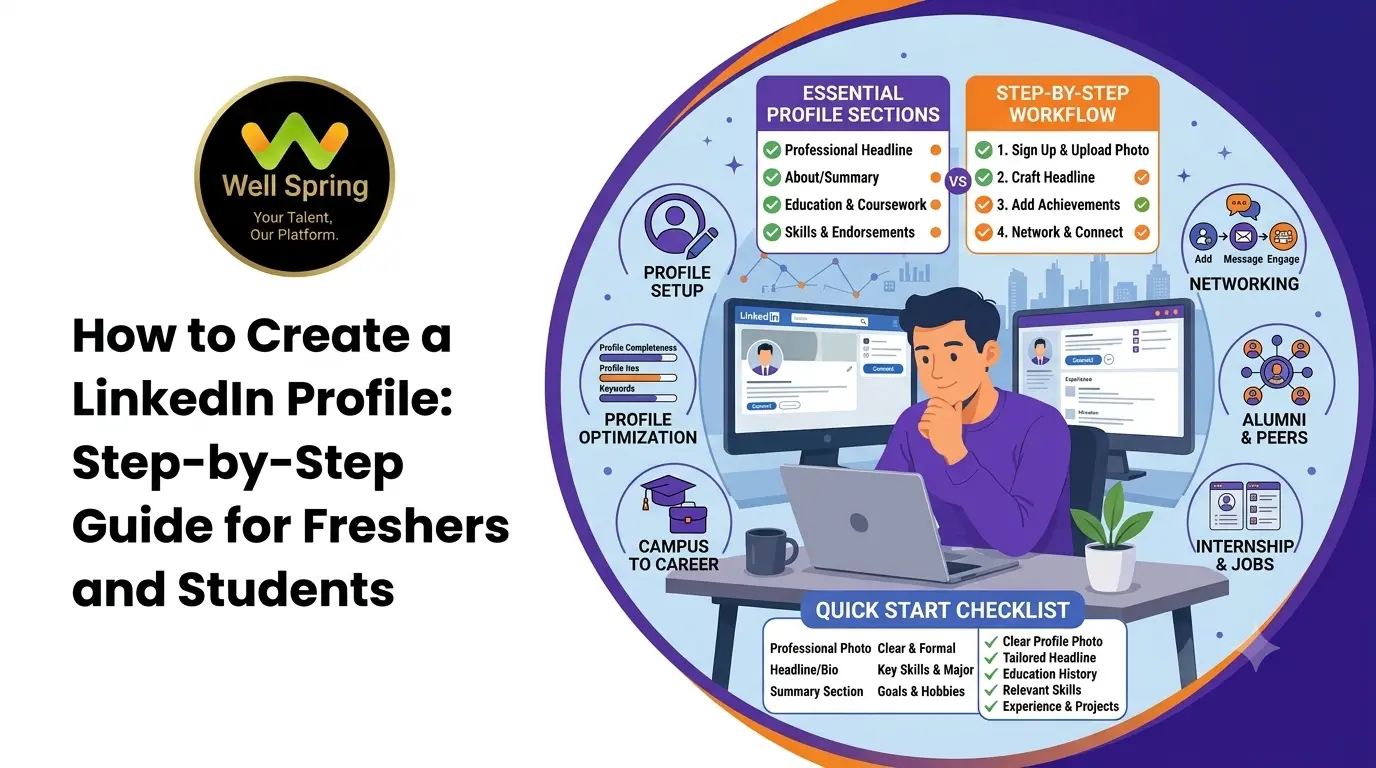
This guide explains how to create a LinkedIn account, build a professional profile, write an effective headline and summary, and use LinkedIn to find job opportunities. It also includes practical LinkedIn profile examples and optimisation tips for students and freshers.
1. What Is a LinkedIn Profile and Why Is It Important?
A LinkedIn profile is an online professional profile that presents your educational background, skills, experience, projects and career interests. It allows students, freshers, employees and business professionals to connect with others in their industries.
Unlike a traditional resume, a LinkedIn profile can be updated regularly and used to build professional connections.
For students and freshers, having a LinkedIn profile can be useful for several reasons:
- Professional visibility: Present your qualifications and skills in one place.
- Career networking: Connect with recruiters, employees and industry professionals.
- Job opportunities: Explore job openings and follow companies that interest you.
- Skill development: Discover learning resources and professional communities.
- Project showcasing: Share academic projects, internships and practical work.
- Industry awareness: Follow companies and learn about current developments in your preferred field.
A complete profile helps other professionals understand your background and the type of opportunities you are interested in.
2. How to Create a LinkedIn Account: Step-by-Step Process
Before building your profile, you need to create a LinkedIn account. You can register using the official LinkedIn website or its mobile application.
Follow these steps to get started.
Step 1: Visit the LinkedIn Website
Open the official LinkedIn website at https://www.linkedin.com/ using your browser.
Select the option to join LinkedIn and begin the registration process.
Step 2: Enter Your Basic Details
Provide the information requested during registration, such as:
- First name and last name.
- Email address or mobile number.
- Password.
Use an email address that you regularly access, preferably one suitable for professional communication.
Step 3: Verify Your Account
Complete the verification process requested by LinkedIn. Depending on the registration method, this may involve entering a verification code sent to your email address or mobile number.
Step 4: Add Your Location
Enter your current location and other requested profile information.
Location information can help LinkedIn show relevant professional connections, companies and job opportunities.
Step 5: Select Your Career Interests
Follow the instructions displayed during account setup. You may be asked about your professional interests, current status or career preferences.
Step 6: Start Building Your Profile
Once registration is complete, add your profile photograph, headline, education, skills and other relevant details.
Your LinkedIn account is now ready for professional profile development.
3. How to Create a Professional LinkedIn Profile?
After creating an account, the next step is to make your profile informative and professional.
A well-structured profile should communicate who you are, what you have learned, what skills you possess and what type of career opportunities you are looking for.
Add a Professional Profile Photo
Your profile photograph is one of the first elements visitors notice.
Follow these suggestions:
- Choose a clear and recent photograph.
- Use a simple and uncluttered background.
- Wear neat and appropriate clothing.
- Make sure your face is clearly visible.
- Use good lighting and a natural expression.
Avoid blurry photographs, group pictures and unrelated images.
Create an Effective LinkedIn Headline
Your headline appears below your name and provides a quick description of your professional identity.
Instead of writing only "Student" or "Fresher", include your field of interest, relevant skills and career direction.
For example:
Computer Science Student:
Computer Science Student | Python | Java | SQL | Interested in Software Development
Full Stack Developer Fresher:
Aspiring Full Stack Developer | HTML | CSS | JavaScript | React | Node.js
Digital Marketing Fresher:
Digital Marketing Fresher | SEO | Social Media Marketing | Content Creation
Java Developer Fresher:
Aspiring Java Developer | Core Java | OOP | SQL | Spring Boot
Your headline should reflect your actual knowledge and experience. Avoid adding technologies or skills that you have not learned.
Write a Professional About Section
The About section is an opportunity to explain your educational background, technical knowledge, interests and career goals.
Keep the summary simple, relevant and easy to read.
A good About section can include:
- Your current educational or professional status.
- Your area of interest.
- Technical or non-technical skills.
- Academic or personal projects.
- Career goals.
- Areas in which you want to develop further.
For example:
"I am a recent Computer Science graduate interested in software development and web technologies. I have learned programming fundamentals, Java, HTML, CSS and SQL through academic studies and practical learning.
I enjoy developing projects, solving programming problems and exploring new technologies. I am interested in entry-level software development opportunities where I can apply my knowledge and continue improving my technical skills."
Personalise this example using your actual education, skills and experience.
4. LinkedIn Profile Creation for Freshers: What Should You Include?
Freshers often assume that they need professional work experience to create a strong LinkedIn profile. However, students can also highlight academic achievements, projects, internships, certifications and relevant skills.
Here are the important sections to complete.
Education Details
Add your educational qualifications, including:
- College or university name.
- Degree or course.
- Field of study.
- Study duration.
- Relevant academic achievements, if applicable.
For example:
B.Sc Computer Science | ABC College | 2023–2026
Skills and Technical Knowledge
Add skills that are relevant to your career interests.
For software development students, examples include:
- Java
- Python
- HTML
- CSS
- JavaScript
- SQL
- React
- Problem-solving
For digital marketing students, examples include:
- Search Engine Optimization
- Keyword Research
- Content Marketing
- Social Media Marketing
- Google Analytics
Choose skills that reflect your actual knowledge rather than adding a long list of unrelated terms.
Projects and Practical Experience
Projects help freshers demonstrate how they have applied their knowledge.
Include:
- Project title.
- Project description.
- Technologies used.
- Your contribution.
- Project outcome or functionality.
- GitHub or portfolio link, if available.
For example:
Project: Student Management System
Technologies: Java, MySQL
Description: Developed a basic application to manage student records, including adding, updating, viewing and deleting student information.
Certifications and Courses
Add relevant certifications and completed training programmes.
Include the course name, issuing organisation and completion date. Where available, add the credential link.
Internship Experience
If you have completed an internship, include the organisation, role, duration and responsibilities.
If you do not have internship experience, you can leave this section empty until you gain relevant experience. Do not add fictional work experience.
5. LinkedIn Profile Headline Examples for Freshers
A good headline helps communicate your skills and career interests to people viewing your profile.
Here are examples for different educational backgrounds.
| Career interest | LinkedIn headline example |
|---|---|
| Software Developer | Aspiring Software Developer | Java | Python | SQL |
| Full Stack Developer | Aspiring Full Stack Developer | HTML | CSS | JavaScript | React |
| Python Developer | Python Developer Fresher | Python | SQL | Problem-Solving |
| Java Developer | Aspiring Java Developer | Core Java | OOP | MySQL |
| Web Developer | Web Development Enthusiast | HTML | CSS | JavaScript |
| Digital Marketer | Digital Marketing Fresher | SEO | Content Marketing |
| Data Analyst | Aspiring Data Analyst | Excel | SQL | Python |
These are sample formats. Select a headline that accurately describes your current skills and professional interests.
6. LinkedIn Profile Summary Examples for Freshers
The summary section should give recruiters a quick understanding of your background and career direction.
Here are examples that students can adapt.
Example 1: Computer Science Fresher
"I am a Computer Science graduate interested in software development and emerging technologies. I have knowledge of Java, Python, SQL and programming fundamentals. I enjoy solving technical problems, learning new tools and developing practical projects. I am looking forward to starting my career in software development and contributing to a professional team."
Example 2: Full Stack Developer Fresher
"I am an aspiring Full Stack Developer with an interest in building responsive websites and web applications. I have learned HTML, CSS, JavaScript, React and backend development fundamentals. I enjoy working on practical projects and improving my programming knowledge. I am interested in entry-level opportunities where I can develop my technical skills."
Example 3: Digital Marketing Fresher
"I am a graduate interested in digital marketing, search engine optimisation and content strategy. I have explored keyword research, on-page SEO, social media marketing and digital content creation. I enjoy learning about online marketing strategies and understanding how businesses improve their digital presence."
Use these examples as starting points and personalise them with your own qualifications, projects and achievements.
7. How to Improve LinkedIn Profile Visibility?
Creating a LinkedIn profile is only the beginning. Regularly updating your information and participating in professional networking activities can help you maintain an active presence.
Here are some practical ways to improve your profile.
Complete All Relevant Profile Sections
Add accurate information to your headline, About section, education, skills, projects and experience sections.
A complete profile gives visitors a clearer understanding of your background.
Add Relevant Skills
Include skills related to your preferred job role. Ask classmates, colleagues or project teammates for skill endorsements when appropriate.
Add Projects to Your Featured Section
Use the Featured section to highlight selected projects, presentations, portfolio links, articles or other professional work.
Request Recommendations
You can request recommendations from people who have directly worked with you, such as internship supervisors, project mentors or professional colleagues.
Share Useful Professional Content
Share relevant learning experiences, project updates, certifications and technical knowledge.
For example, you could write about:
- A project you recently completed.
- A programming concept you learned.
- Your experience attending a technical workshop.
- A certification you earned.
- A technical problem you solved.
Keep Your Profile Updated
Update your education, skills, projects and experience when you complete new training or achieve something relevant.
8. How to Use LinkedIn to Find a Job?
LinkedIn can help students and freshers discover job openings, research companies and connect with professionals.
Follow these steps to use the platform for job searching.
Search for Relevant Job Opportunities
Open the Jobs section and search using job titles that match your qualifications and interests.
Examples include:
- Software Developer Fresher.
- Java Developer Trainee.
- Junior Web Developer.
- Python Developer Intern.
- Digital Marketing Executive.
- Graduate Trainee.
Apply Filters
Use the available filters to narrow your search by location, experience level, employment type and other relevant criteria.
Follow Companies
Follow organisations that operate in your preferred industry. Their pages may provide information about company updates, job openings and events.
Connect with Recruiters and Professionals
Send relevant connection requests to recruiters, hiring professionals, alumni and people working in your preferred field.
Keep your connection message short and professional.
Set Job Alerts
Use LinkedIn's job alert features, where available, to receive notifications about relevant job listings.
Prepare Before Applying
Before applying, review the job description and compare its requirements with your skills and experience. Make sure your resume and LinkedIn profile contain accurate and consistent information.
9. Common LinkedIn Profile Mistakes Freshers Should Avoid
A LinkedIn profile should present your professional background accurately. Avoid the following mistakes:
- Using an unclear or inappropriate profile photograph.
- Leaving the headline blank or writing only "Student".
- Copying generic About summaries without personalising them.
- Adding skills that you cannot demonstrate.
- Including incomplete education details.
- Claiming professional experience you do not have.
- Ignoring spelling and grammar mistakes.
- Sending random connection requests without context.
- Sharing unrelated or unprofessional content.
- Failing to update completed projects and certifications.
Review your profile regularly to make sure your information remains accurate and relevant.
10. LinkedIn Profile Optimisation Checklist for Freshers
Before using your profile for networking or job applications, review the following checklist.
- Add a clear professional profile photograph.
- Create a suitable LinkedIn headline.
- Add a customised About section.
- Complete education details.
- Add relevant technical and professional skills.
- Include academic and personal projects.
- Add completed courses and certifications.
- Include internship or work experience, if applicable.
- Add a professional background banner.
- Review your profile URL and customise it if available.
- Connect with relevant professionals.
- Check spelling, grammar and profile visibility settings.
Completing these steps can help you create a more organised and informative professional profile.
Conclusion
Learning how to create a LinkedIn profile is a useful step for students, freshers and graduates preparing for professional opportunities. A well-organised profile allows you to present your education, technical skills, projects and career interests in one place.
Start by creating your account, writing a clear headline, adding a personalised About section and showcasing your practical work. Continue improving your profile as you complete new courses, develop projects and gain experience.
A professional LinkedIn presence, combined with continuous skill development, networking and consistent job preparation, can help you explore career opportunities and build meaningful professional connections.